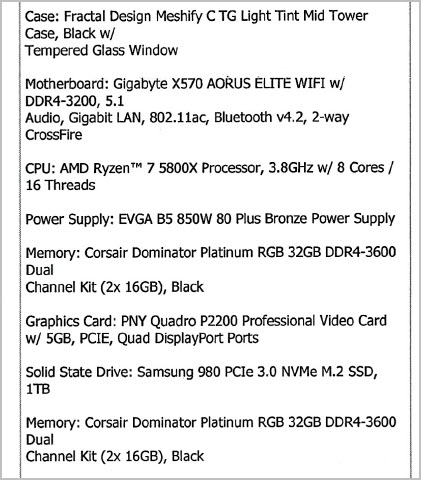
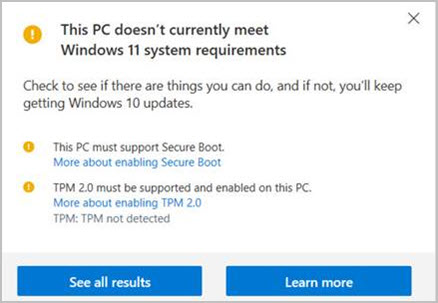
I’m currently running SW-2024-SP5 on Win-10 PC built 2021, system snapshot below. I read that MS will/is offering Win-10 security coverage for 30$USD (1 year). But my preference is go straight to Win-11 & be done with it. When I run MS Win-11 test it complains about 2 things: Secure Boot & TPM 2.0. I thought this was going to be a headache but my IT guy said those could be dealt with as part of Win-11 install - its not a hardware limitation, more of how it was initially set up. I believe he said he checked MS website regarding CPU as being listed compliant. So this was good news, as I’m happy with performance for now. Any comments on this aspect or anything else to be aware of? My plan was to farm this out to him so because i will find a way to mess it up.
Q1) The next step is where I’m fuzzy. I always assumed a wiped drive, fresh OS install & then the apps is preferable. Probably loosely based on reading about post OS ‘problems’. But he said high likelihood all the apps would run under Win-11, reinstalling them all would be unnecessary. I’m only really concerned by SW & prefer to have same SW-2024 version running under Win-11 for now; deal with v2025 later. The other apps (not too many) I have SR#’s so if they hiccupped I could uninstall/re-install if needed. So I’m unclear here, would he be initiating Win-11 upgrade through ‘normal’ MS download/installation process & dealing with any OS issues as they arise (including secure boot & TPM 2.0)?
Q2) Not really SW related but the plan is to upgrade to MS-365 to replace Office v2019 at some point soon-ish for the same reasons. I’m only really concerned by Excel as it pertains to SW design tables etc. I already posted a question on the forum which was answered (365 not officially supported but majority say it works). But in light of the Win-11 plan, should I just get the system running happy under Win-11 as it was, & then do an v2019 uninstall / 365 install & supposedly all will be good?
Q3) Not really on my radar, but wondering out loud. Say I wanted to throw some more memory into the PC since it’s in the shop anyway. Is it basically a matter of buying the right flavor, DDR-4? & plug it into the slot prior to OS upgrade?
I can only address question #1. Our IT folks updated my computer to Windows 11 a few months ago, and it didn’t affect any of the programs I had installed, including SW.
By the way, the biggest difference I’ve seen with Win 11 is the ability to have multiple tabs open in one window in File Explorer (similar to the way we’ve been able to have multiple tabs open in internet browsers since forever) instead of the need to have multiple windows. They should have done that years ago.
I still prefer a clean install. I don’t think it is as necessary as it used to be, but it’s what I’ve done for over 20 years. I did upgrade one of my computers and have had no issues, but it isn’t my preference.
Look on your motherboard and see if there is a Small 14 pin connector if there is then you can added the TPM 2.0 module to make your system compliant with Windows 11, I just did this, it costs about $23 cdn for the module and then you can just upgrade the OS.
I hate how they hid things used frequently like “Print”, “Create a Shortcut” and other things under an additional click “Show more options”. Windows Explorer seems to do a much better job in the searches, but it is also a lot more intensive on the disk at start-up(seems to do a large indexing that is what most likely helps the searches).
Oh and I’ve had to return about 20 people to legacy Print interface because the Windows 11 print interface isn’t very good/intuitive.
I’m not a fan of them also moving the Solidworks options under there also, but I don’t mind that as much as Copy, Paste, Delete etc being icons instead of text. Why have we gone back to pictographs?
It seems to me that the Software department at Microsoft staff need to do more work instead of fixing the OS so they make arbitrary changes to the user interface with out thought to work flow for the sake of change. Thus we have to learn a new process that is most likely worst or more step to do the same task. IMHO lol
That has existed for a long time though, but it is indeed a really bad option. So many people end up with viruses because they don’t realize the fake extension is part of the name
I’ve learned that isn’t great for me. I work with a lot of computers, some of them for customers. When I customize my Windows 11 computer, it just makes me that much more lost when I work with another computer.
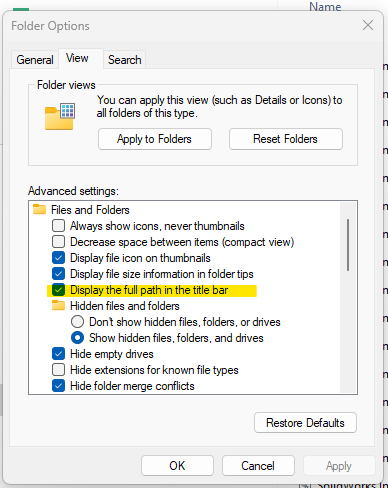
@josh , would you mind clarifying what you mean? Do you mean you want the whole file path in the tab instead of just the folder name, or in the line just below it in the active sheet? I’m asking because I’ve always seen the whole file path in that space (assuming the window is large enough), without changing anything in options.
Both. Right now I’m only using one tab. The whole title bar at the top is empty wasted space. If I only have one tab, make it wide enough. Then, in the address bar, it’s an idiotic waste of space with the giant gaps and “>” characters. Being able to click any folder that’s shown in the path is kind of nice, but you could easily implement that functionality without wasting most of the space.
You can also click the arrows to choose a different subfolder. Of course all this behavior was also in the Windows 10 version. It seems like they overcompensated for the incredibly narrow breadcrumb from Windows 10 where it was a bit tricky clicking the arrows.
The Windows 11 bar is about 50% wider than the Windows 10 bar.
A lot of this is likely done to cater to the touch screen crowd where fingers can’t be nearly as precise as a mouse.