That is a pain to keep up with. There are a few times I break the link like when we have a generic motor put in the assembly but we get a manufacturer specific part # that we need to put in the BOM. So break the Link works great for those.
The neat thing is that you can right click on the arrows of the BOM and restore all the values at one time. The option is only available if any have been over written.
Nice, another good tip. Appreciate your help David.
Any of you wizards know how to link a property to the quantity of bodies in a multi-body part, without turning it into a weldment?
I don’t beleive its possible, but I’ve been wrong before. (Edit - was wrong again)
Side bar: It still looks as though in 2024, that cut-list properties are applied globally to the part, rather than applied to each specific configuration.
Im testing the “detailed cut-list” option, trying to find a solution to a problem. Finding other problems instead of solutions..lol.
You can do it like this.
Part1.SLDPRT (83.4 KB)
Mind backdating that so i can open in 2024?
I can see the properties, but can’t do much else. Assuming this is done with a macro?

Thanks Josh
Not a macro per se, just equations.
Part1_2023.SLDPRT (84.5 KB)
Okay, that’s good to know! I saw the VBA suffix and that’s where my mind went.
Curious where you learned this method? A search of that property name sends me to the Solidworks API resources.
Much appreciated though, this could be really helpful.
Pretty much invented it. Or at least came up with later independently. I haven’t seen many other people do it..
It is indeed a line of API code, although it’s not a macro per se.
There are a couple of ingredients here. The main thing is that equations can execute any VBA code. In days gone by, you could just write VBA code in the equations dialog. Then I made a presentation about doing so at SWW (that’s SolidWorks World, what we had before 3DX world or whatever it is now). In the next release they ruined the equation dialog so that it complains if you type anything but super basic equation stuff.
So the next ingredient is the fact that if you link an equation to a property, it will go ahead and pass the property contents over to the equation evaluation engine, bypassing the stupid syntax check in the Equation dialog. Except that you can’t have the code in the property at the time you link it to the equation.
So there are steps here.
- Create the property that will later contain VBA. NumberOfBodiesVBA in the example part. Give it a value of 1. Don’t type in any VBA yet.
- Create the global variable that will execute the code. NumberOfBodies in the example part. Link this global variable to the property created in step 1. It should evaluate to 1 because you gave it a value of 1. If you tried to skip that step and go ahead and type the VBA code, it would have complained about syntax.
- Only now can you go back to the custom properties and type in the VBA code. You can also go ahead and create the second property NumberOfBodiesValue and link it to the value of the global variable if you need the result to be in a custom property.
Of course, none of the names are important here. You can substitute your own property and variable names.
That’s a brilliant solution to a difficult problem, many thanks for the detailed explanation. It’s unfortunate that you had to resort to finding a creative workaround to something that used to be so straightfoward, but I think we’ve all been there at some point with this software. I know around the time they changed equations, because I made this thread where Tom Spine confirmed it. ( You’ll remember him )
Excited to see the different ways I can use this in our process. 
So I thought I had a clever solution to one of my problems, but it seems instead like I’ve just ran into a software limitation.
We use a laundry list of material UNS callouts, most of which are specific to the type of material you are choosing (Ex. Plate = SA-240-304 : Forging = SA-182-F304). To ensure proper formatting and also to ensure the user specifies the correct material for the application, I thought I would be able to take advantage of the Property Tab Builder and create a list of material UNS selections, based on the TYPE specified.
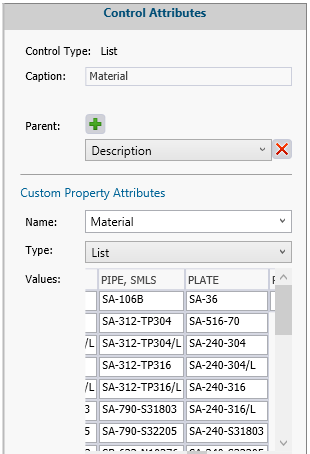
It looked promising but the problem occurs whenever its used within the part file…
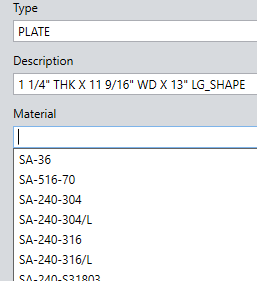
The Description is parametrically linked to bounding box data, as well as dimensional data, as shown here:

Whenever I use the custom property manager tab (right side pane) to select the material as shown in the example above and hit “apply”, it converts that parametric property description to raw text, breaking the link. This is a problem for the obvious reason.

So, does anyone have a creative solution, or maybe a recommendation of another method of acheiving this result? Formatting is important, we export this data into another application, so it has to match when its pasted into that program.
I feel like creating a custom library within the SW Material library is probably the answer.. but I’ll see what advice I get first on this preferred method.
So… If I read this correctly, your parametric Description (which looks like is automatically created with no user interaction?) gets overwritten with its static value any time you display it in a Property Tab Builder page? Does it also overwrite when you edit other custom properties, or only when you select the dropdown Material property?
Can you just remove the Description property from your tab builder page?
Funny you should say that, while thinking more about this on my drive home it hit me that this is probably what I should do. As long as the Description property is active in the Part Template, there’s really no reason to have it in the builder template also.
Great input once again josh, Ill let you know if it solves this issue.
Tried it out this morning, works like I had hoped. This is good news.
Previously I had used the tab builder to set up the custom properties for the Part template, so I guess it just wasnt obvious to me that I could make them independent of eachother. This will be helpful going forward.
@josh , thanks again for the suggestion
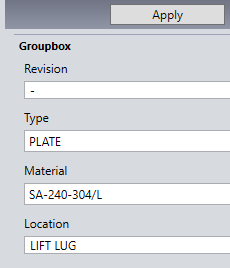
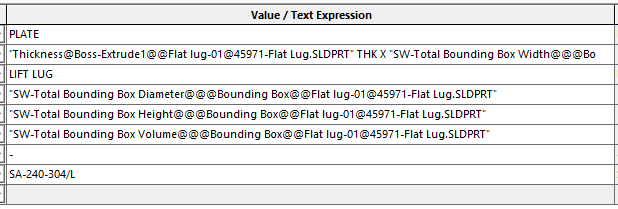
The property tab builder, is a bit confusing with the way that it displays information. Since you are fixing it to the bounding box dimensions I would make that non editable.
I learned that the property tab manager will show the value of dimensions used to create a text string, instead of the way they show up in the file properties with the dimension name. It can be quite confusing to edit when you want to change a thickness by 1/16 or 1/8 of an inch in the description and it deletes the dim and you then have to type in the complete new dim.
Keep working with it and you can always check the file properties to make sure that things are writing in the way that you would do it over there.
I have not been to happy with the way the cut list property manager works but I finally found a decent use for it in our process.
I agree. The tricky part of all of this, is just communicating to others that if you happen to be making a new part on your own you’re going to have to visit more than one area to input your data. Just based on the testing here in this thread, I’ve somewhat established that it may require you to use 3 different methods to input data for a single part, if that part is made from scratch. We do alot of in-context modeling, so it’s not always practical to just insert pre-engineered parts, but I guess it may be something I’ll need to take a closer look at.
Regardless, it’s nice to see some progress on a few of these development challenges thanks to the contributors to this thread.
Can you use the calculated SW BOM quantity as a variable in an equation? For intance, I’d like to increase the SW BOM QTY by 10% for select components. (for example)
Ideally, I would place a global variable in the part file for a component that we may need to provide “spares” for. The user would edit that variable when the customer requires a certain percentage. It would then increase the calculated SW quantity by said variable.
Does this sound reasonable?
You can do this. Create your global variable and set to to the spares multiplier (e.g .1.1 for 10%). You can have multiple configs with different percentages if needed. Add a custom property to the part. Call it something like ‘QTY MULTIPLIER’ and set it equal to the global variable. In the BOM Quantity drop down, select this property:

Now when this part is in a BOM, the quantity will be multiplied by the value of the property, which is linked to the global variable. If you have 10 parts in your assembly, the quantity in the BOM will be 11.
The only wrinkle is that you’ll get quantities that aren’t always whole numbers. For example, setting the multiplier to 1.1 and having an assembly with 2 of the component will give a quantity of 2.2 in the BOM. There might be a way around this with calculated columns or something, but I haven’t really played with that.
Got it. Thanks Jim!
This is a pesky wrinkle.. Because the quantity is unkown.. and SW doesn’t give a variable that will solve for the total quantity of a component, I’m so far striking out on solutions.
Ideally, you could format the cell column, similar to excel and choose to set the decimal field to 0.
You can use the “round” function in solidworks equations.
I found this article that explains how to use a combination of if and round to always round up.