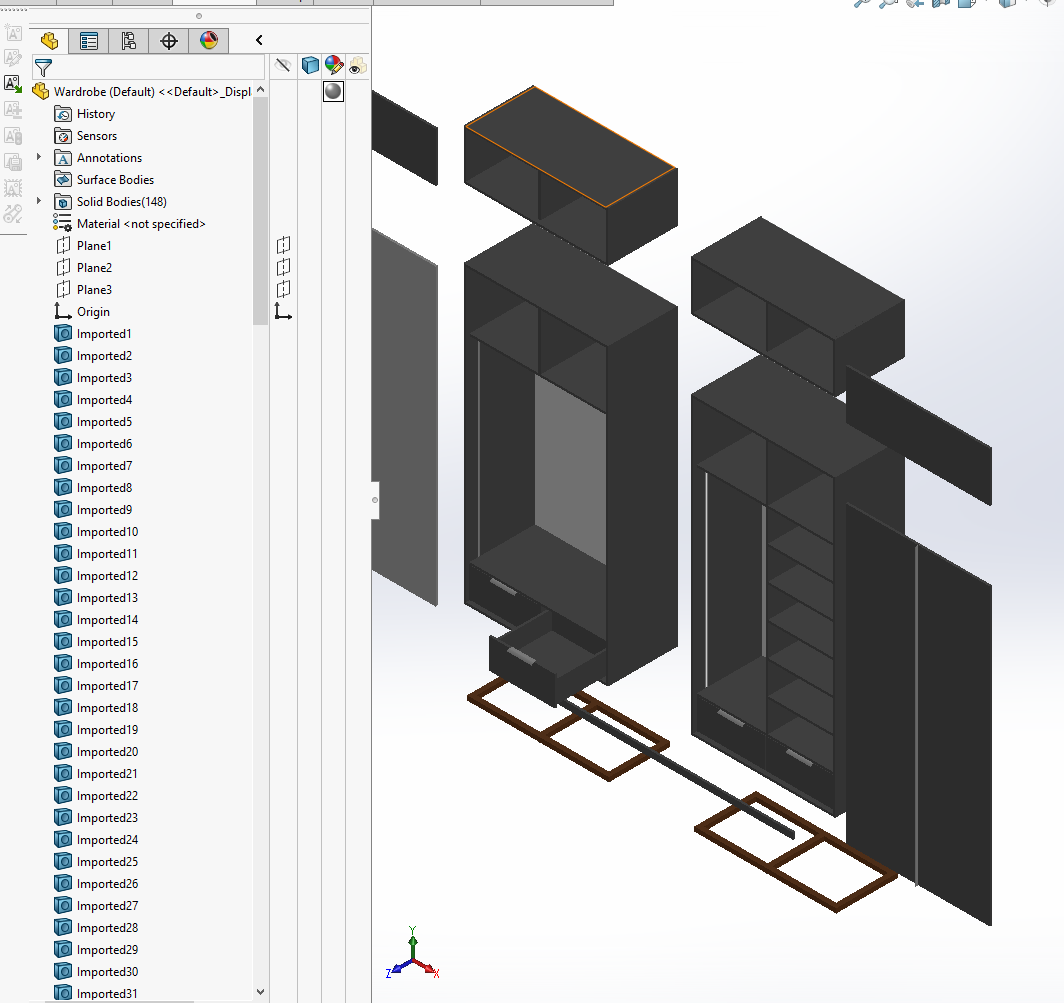
I came across this appearance issue and cant seem to figure out what causing it…
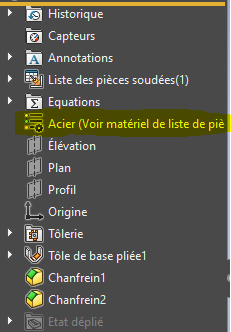
In the feature tree, there is no appearance applied to the feature
image.png
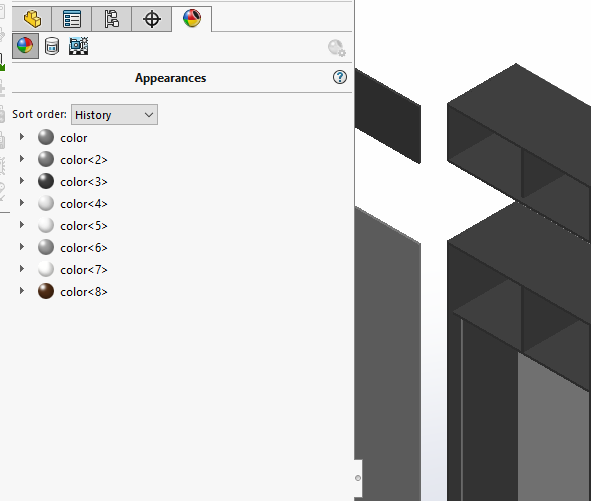
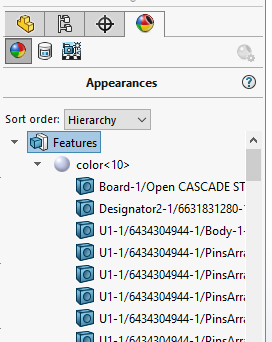
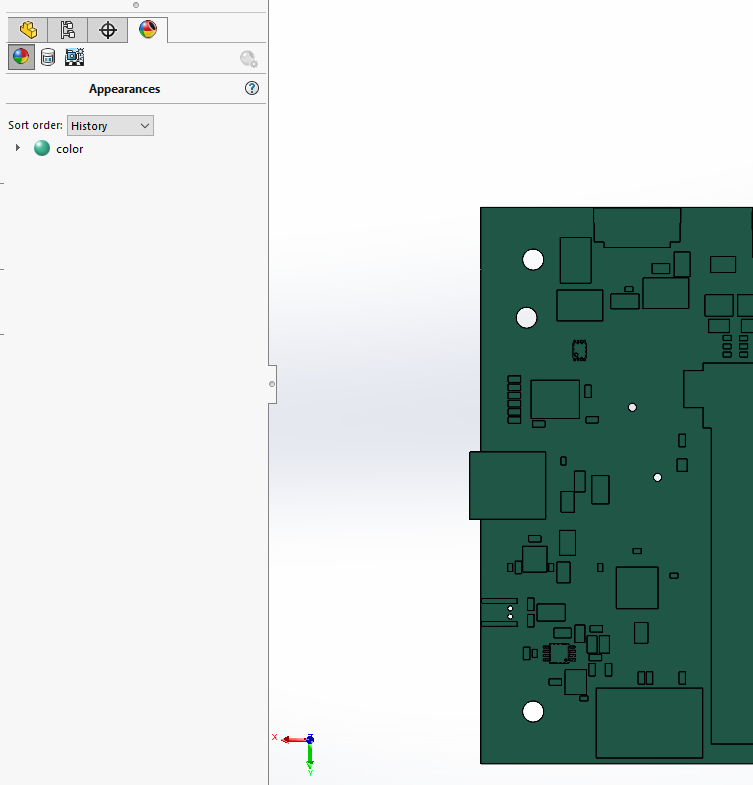
However, when i go to the appearance tab, under the there is a appearance applied to feature… and the worse part is the appearance could not be removed <()>
image.png
This isn’t a glitch it’s the default behavior. Think of it like this, if there is no color/appearance to the model then there would be nothing to show graphically. You can always change it to whatever base color you want. Also the appearance tab is the sole source of truth when it comes to this area. The other tab can be a nice go to and should be a 1:1 but it’s not.
I’m pretty sure I ran into this one time (SW2020 SP5.) I can’t remember how I solved it, unfortunately. You might try saving it to a different file name and see what happens.
That doesn’t look like features as such, it looks like a bunch of imported bodies, and the appearance is applied at the body level. It looks like there is much more to the part than what you are showing. If you can share the part, I will take a look.
They are indeed imported bodies from what I can tell in his first screenshot. Most likely whatever file was used to export it didn’t contain any color data so SolidWorks used the “Default” color/material color for whatever it created. Since he is working in a part file, it most likely comes from the “default material”
Ok so will say once again… there has to be some default material applied to the model otherwise there would be nothing to show on the screen. This is what is supposed to be the case. So even if ALL textures/colors are removed there HAS to be something that governs the on screen model looks like.
I can remove all of these appearances, and end up with this:
image.png
It seems that the original poster wants to do this but something isn’t allowing it.
JSculley So the appearance tab (aka the beach ball tab) is really what everyone should be using to govern any and all appearance, textures, colors…etc. The tab that flys out from the FMT just isn’t something to go by. Especially when it comes to imported models, just remove them because what ever software these colors/textures etc were applied in do not respect the Solidworks materials hierarchy. This can wreck major havoc through out Part files and Assemblies.
Let’s not also begin to even pull back the layers involved with display states with appearances, inter mixed with Part, Sub-Assemblies, and Top level Assemblies. Just save yourself the headache and follow the above steps above…
It looks like you have not changed any of the body appearances. The very first line in the tree shows a default light grey color but if you would go in and change the body colors of individual bodies, then you should see appearance colors. I tried it on a part with features but no appearance assigned and it showed just the single color at the very top. I went and changed a couple of feature colors and it populated the appearance color. I also took an imported file with multiple bodies & it showed the same. Here’s after applying appearances to multiple bodies
image.png
I use beach ball only when something went wrong and I can’t fix it in the tree. Usually an override somewhere.
Otherwise the tree is great to apply color/appearance on part or assembly level.
I think the tree only show non-default appearance.
Sorry, i was out for few days and could not reply until now.
The appearance is applied, or rather “Stuck” at the feature level, not body level.
Unfortunately i could not share this file.
image.png
Yes it is a imported STEP file.
The issue i am facing is really just i could NOT remove the Feature Level appearance.
I do have a Part level appearance applied in case anyone is wondering
Using Remove All Appearance, remove the Part appearance, but not the feature level appearance
Right clicking the Feature level appearance and select Remove has no effect too.
image.png
There is no material applied.
image.png
Yes, exactly. I just want to remove the feature level appearance so that my part appearance will work, and also so that i can apply appearance at body level
\
I had tried record a video regarding the issue. VIDEO LINK BELOW:
When I try to Remove the Feature Level appearance, the software did attempt to process/remove, the part “blinked” to the part level appearance (green) for a few second, but someone the feature level appearance is reapplied.
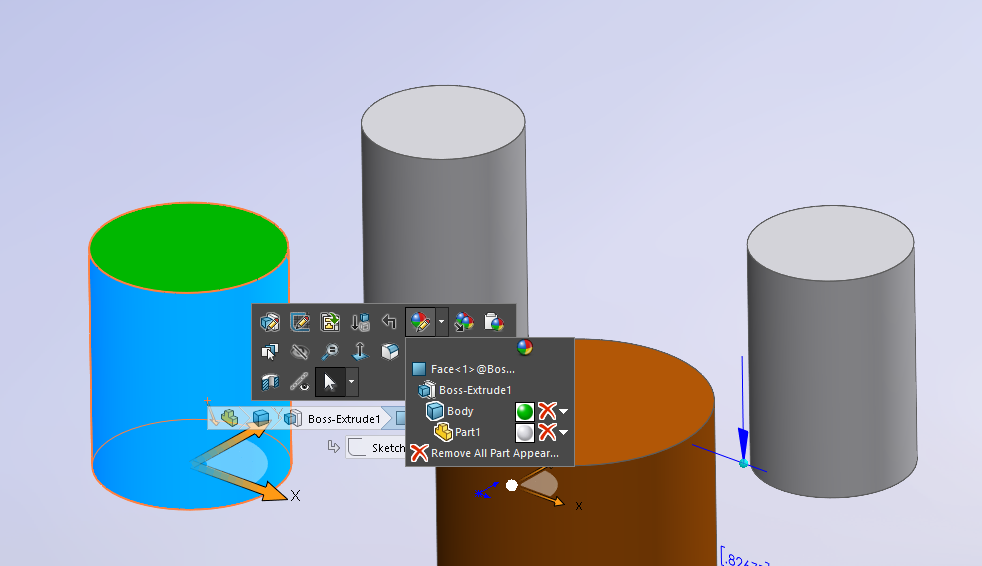
I suspect the appearance is applied at the body level. Your appearance hierarchy is showing appearance at the feature level, but I think that is coming from it being an imported part. If you click on a face, you should be able access an appearance hierarchy display like this:
and it will tell you what level the appearance is at.
There is no display state and config beside the default since it is imported step
The info shown contradict with the appearance tab.
I am selecting the face of Board-1.
The appearance tab show that there is a feature level appearance applied.
The right click window show that there is no feature level appearance, only part appearance
image.png
I have a user with a similar problem. A multi-body imported model where when you try to apply an appearance at the body level, it doesn’t seem to work. The appearance popup shows that it is applied, but the display doesn’t show it. The appearance tab in the feature manager shows nothing except the body level applied appearance.
After some poking around, it is apparent that the faces of the body have an appearance applied, but it doesn’t show up in the feature manager appearance pane. The only way to remove them is to select the faces and use the popup.