Hrmm. That is generally the first place that I look when I have issues like that.
The 2nd thing that I do if that doesn’t work is to do a “parasolid wash”.
Save the part out as a parasolid, then re-import it and try again.
If you STILL have the same issue, then the issue is potentially these:
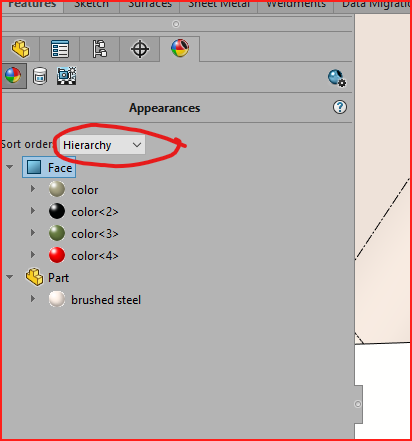
the “order” of appearance is misunderstood, and something is overwriting the appearance after you apply it. Check here:
Outside of that, it could be the vaporous and hard to grasp Graphics driver update issue.
I’ve definitely seen this orphan appearance issue, and spent hours trying to track it down. I think I did succeed in the end. It isn’t drivers. My model passed all the body checks. It’s Solidworks. My part had appearances applied via materials, mirrors of features and/or body, and combines. Somewhere along the way the wires got crossed.
Stuff I did included:
Deleting all the configurations
Deleting all the display states
Removing all materials from each body (I think this was tricky for some reason – perhaps I inadvertently combined/merged bodies with different materials, and had to roll back before that feature before I could remove the per-body materials)
Rolling the tree back to the top (default origin and planes), and doing CTRL+Q several times while rolled back, before rolling forward to the end
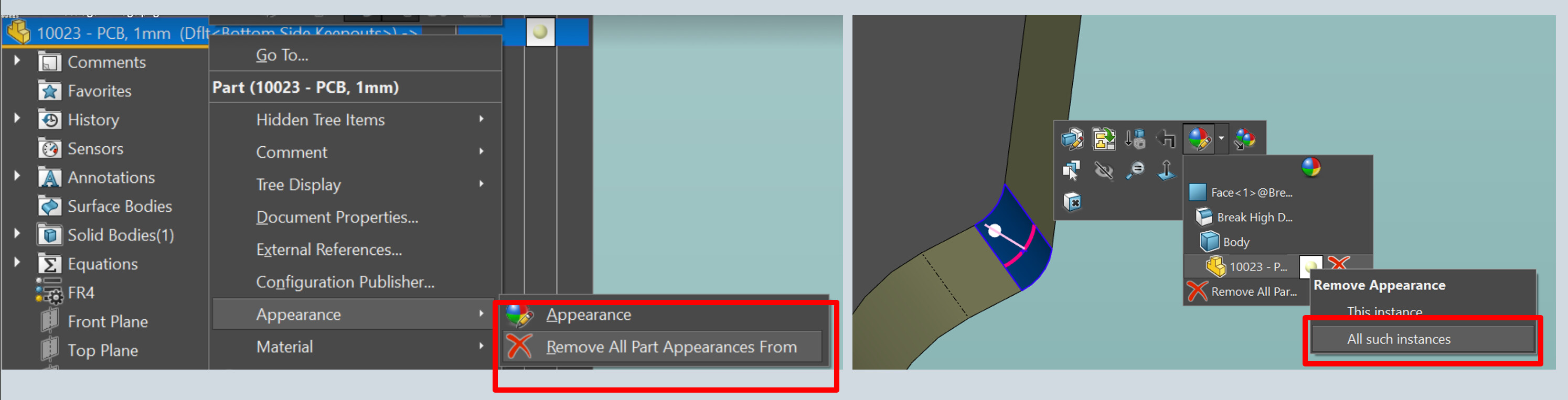
Using the RMB menu from the model name at the time of the tree and removing all part appearances
Rolling the tree back in the flattened view one feature at a time until I could find a body/face that had the orphan appearance. Then doing RMB, appearances, and using the chevron to remove “All such instances” of the appearance.
Here is a note I wrote to my future self on this topic:
Be careful when applying materials to bodies in configured parts, or just in parts where a large part of the tree may be suppressed (which allows material to be applied at a point deep in the feature history). Operations such as mirror-body, split, or solid->delete-face->knit-to-solid appear to reset the body id and materials assignments don’t always propagate properly across this. You can get into trouble if you apply a material to a body at the end of the tree, and then via have features suppressed (manually or via a configuration) back to before one of these “id reset features” and apply a different material at that point in the history. This can cause the part appearances to act bizarre, and can cause sketches/features to be marked for rebuild if you roll up past them and roll back down.
Kinda drastic and “use at your own risk”. you could open the file in text editor and try to “remove” the color definition.
I colored a model hex #495 (so i could search and find it in this example) and highlighted the result below.
I don’t know how to change it to get it to work: you could try to replace the color with a space " ", or nothing “”, or double quotes( “” )
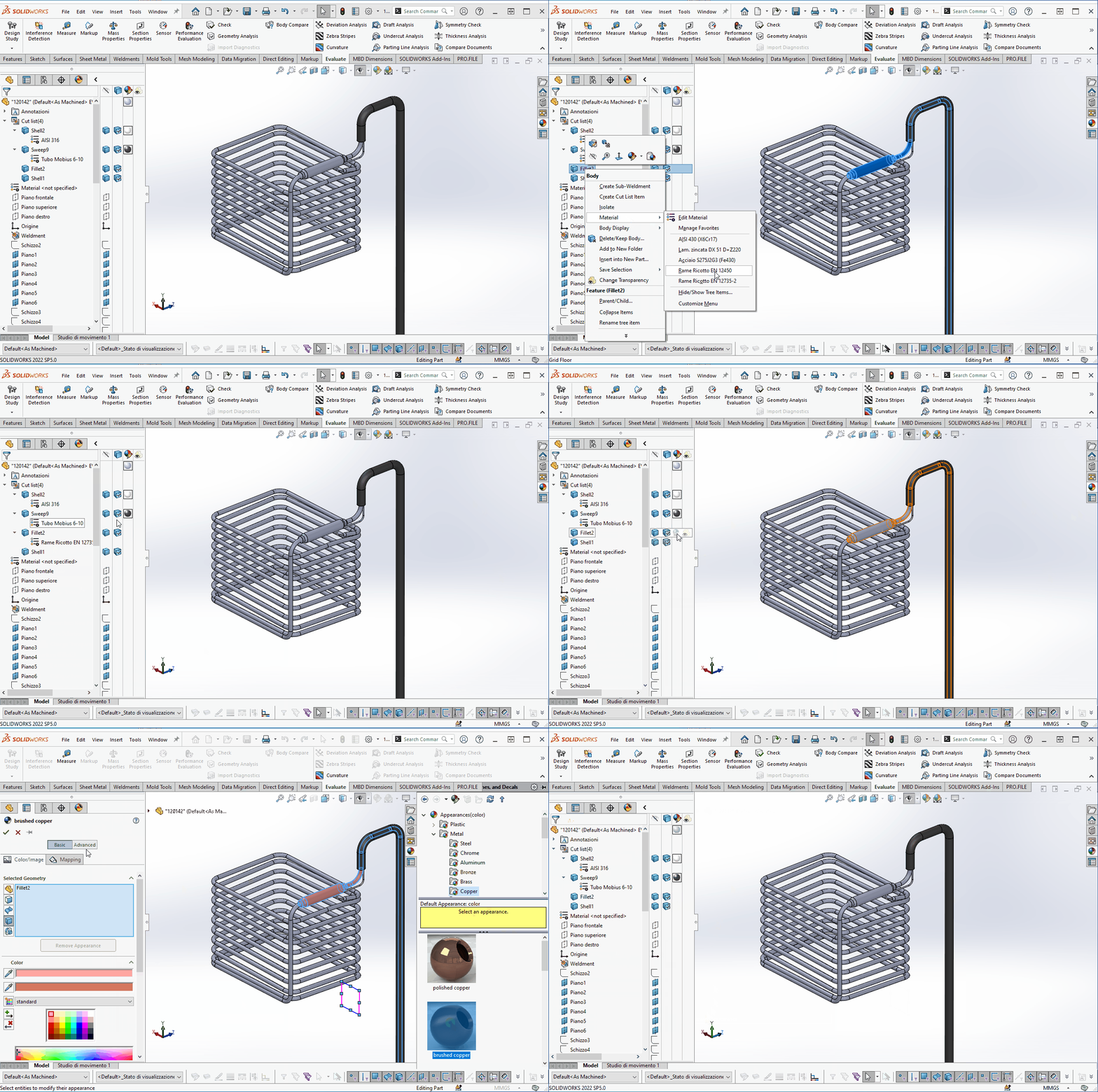
There should be a bug… I used materials and appearances for years with Solidworks but I’ve never seen something similar… When I try to apply material/appearance to a body, its appearance doesn’t change but the color of another body is changed instead. Unbeliveble… The preview of the appearance is correct, but when applying the change, the colors revert to wrong ones. See the attached gif.
Does anyone can help?
I may be wrong, but could the problem be that you are applying the appearance to the cut list and not the body/features? I admit the highlighting/preview is working strangely.
That’s not it. That is the proper procedure for applying different materials to separate bodies in a multi-body Part. I wonder if a re-boot would help.
Just stumbled across this on the knowledge base. SPR1206532.
SPR1206532.png
This relates to appearances being “lost”, not appearing when they shouldn’t, but may still be relevant if “appearing when they shouldn’t” == “lost only some of the time”.
I did some ‘cut’ that changed the number of bodies and their arrangement on this part with respect to the original part, probably that messed up body reference to appearances…
Reboot didn’t solve the problem. I applied appearance to features downstream on the feature tree in order to overwrite the wrong appearance of the bodies and it does the trick, but it is a workaraound.
I have another part very similar to this one in which I did the same changes, but apperances work correctly as expected in that case.