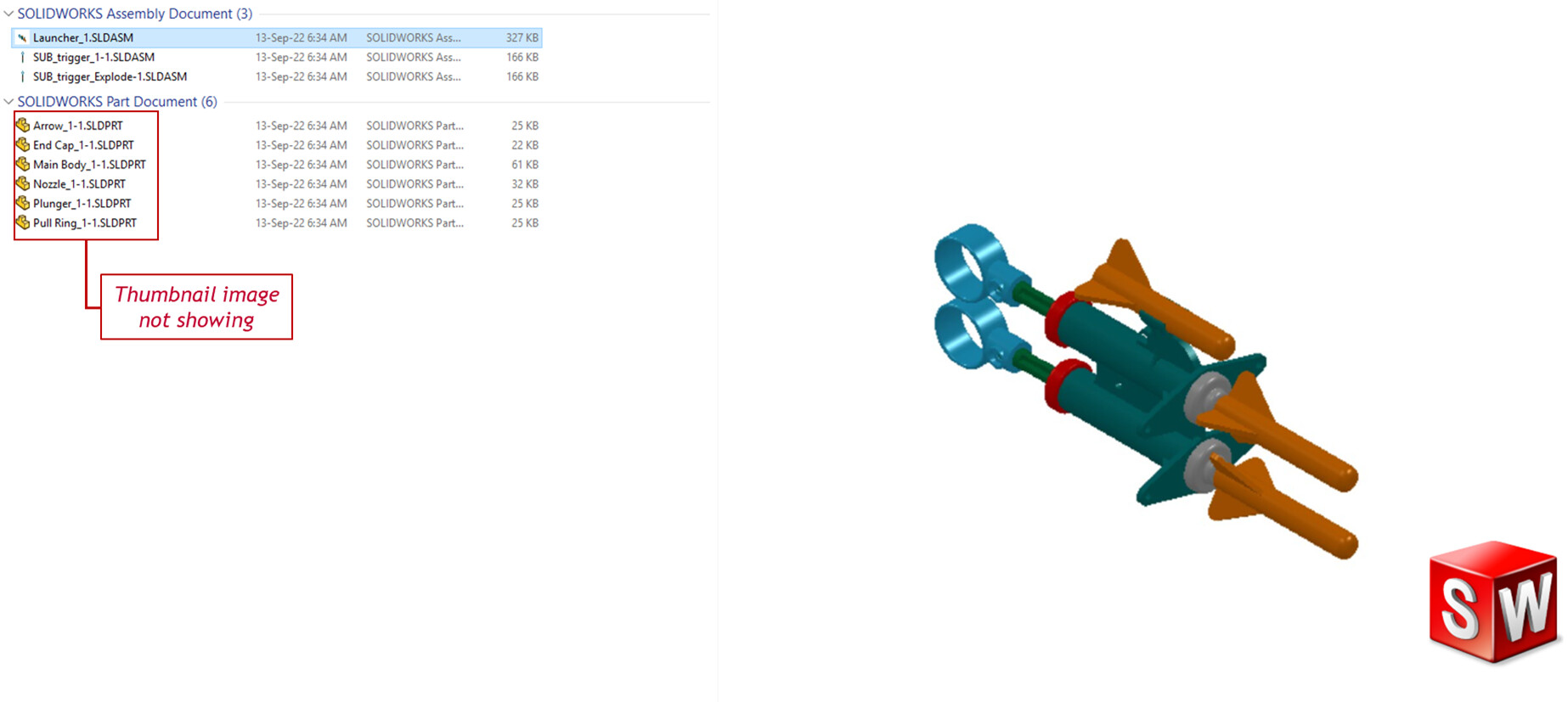
Browse to a folder that contains Solidworks files.
Right-click on one of them to open the menu, then left-click on “Open with” to open the “How do you want to open this file?” dialog box.
When the dialog box opens, first click the box for “Always use this app to open .SLDASM” (or whatever file type this happens to be), then choose SOLIDWORKS Launcher.
You may need to repeat this with all three file types.
If this doesn’t fix it, see the reply below from Zhen-Wei Tee.
If you want a graphic preview on thumbnail instead of solidworks icon, you will need to turn on “Show thumbnail graphics in Windows Explorer” in System Option
If you already have “Show thumbnail graphics in Windows Explorer” turned on but the thumbnail graphic/image is not showing for some of the files, you will need to re-open the file(s) and re-save it so that solidworks can generate the thumbnail graphic. This normally happens when you import assembly from a neutral file format such as STEP or PARASOLID.