System option and document properties

I would like to understand a little better where and when Solidworks settings are used.
Solidworks pulls settings from a lot of locations depending on the user action.
I am focusing on CAD only, excluding PDM, simulation and edrawing from this discussion.

At the end of the day I prefere to have my company SW settings in a readable format, possibily plain text, or a REG file instead of relying on native files only. Native files are basically black boxes and it is difficult to make comparison at glance, having to dig all the settings screen in modelling assembly and drafting as you could miss some hidden option here and there.
This is why I am doing this kind of work, just to clean up all the garbage inside our data and keep track of what must be preserved from one CAD version to the next one.


My understanding is that SW system options are stored on a per windows user base inside the windows registry under

HKCU\software\solidworks\solidworks 20xx

the “factory defaults” (sort of, since they seems to be missing some keys the user creates when using SW) are stored under

HKLM\software\solidworks\solidworks 20xx

This is the simplest part and I am managing our company defaults pushing reg files to there.
But looking a bit closer to the above registry keys there are comprised by a lot of subkeys.
Depending on your installation there are over 15,000 unique settings including menus, toolbars, command manager, and other UI customizations. Splitting them in “System option” and “UI and other customizations” makes them more manageable.

Many System Option settings fall under this key and the below subkeys:

HKCU\software\solidworks\solidworks 20xx\general

User interface is mostly (not all) under the “\user interface” subkeys.

There are some specialized subkeys like

HKCU\software\solidworks\solidworks 20xx\assemblies

but a lot of system options are just thrown under general together.

This is the simple part, and I think I got it.
What I do not understand is how other specialized keys are used by SW. Take:

HKCU\software\solidworks\solidworks 20xx\Dimensions

This key contains what seems to belong to “document properties” not the “system options”: arrow dimensions, center mark dimension, virtual sharps. When I remake my templates I need to import all those settings from our drafting standard file, so why are they there and when are they used? On what values are they setup? Are they a dump from a previously used template in case no template is selected in SW?

Dimension settings and other document related properties are saved inside the templates files, but roughly half of them can be saved to a drafting standards file.
So having to remake from scratch the templates for the second time, and considering the last time I missed a couple of options (out of 1500+) causing some annoyance in the company, this time I figured out to extract all the documents properties from our existing template using API and I was able to compare the new template (currently under remake) and the legacy one dumping all the settings in two txt files and comparing for differences.

Document settings are apparently divided by data type so you have settings divided in:
DOUBLE
INTEGER
STRING
TOGGLE
TEXT FORMAT(font objects and all their settings)

API Help have ALL the properties methods explained and for each of them the property enumeration (they are solidworks version dependend, sorted by name and there are “internal use only” and “obsolete” properties as well, so be careful when comparing apple with oranges…).

DOUBLE METHOD
https://help.solidworks.com/2022/English/api/sldworksapi/SOLIDWORKS.Interop.sldworks~SOLIDWORKS.Interop.sldworks.IModelDocExtension~GetUserPreferenceDouble.html?verRedirect=1

DOUBLE ENUMERATORS (for the types below I will skip enumerators as they are linked in the method page)
https://help.solidworks.com/2022/English/api/swconst/SOLIDWORKS.Interop.swconst~SOLIDWORKS.Interop.swconst.swUserPreferenceDoubleValue_e.html

INTEGER
https://help.solidworks.com/2022/English/api/sldworksapi/SolidWorks.Interop.sldworks~SolidWorks.Interop.sldworks.IModelDocExtension~GetUserPreferenceInteger.html

STRING
https://help.solidworks.com/2022/English/api/sldworksapi/SolidWorks.Interop.sldworks~SolidWorks.Interop.sldworks.IModelDocExtension~GetUserPreferenceString.html

TEXTFORMAT
https://help.solidworks.com/2022/English/api/sldworksapi/SolidWorks.Interop.sldworks~SolidWorks.Interop.sldworks.IModelDocExtension~GetUserPreferenceTextFormat.html

TOGGLE
https://help.solidworks.com/2022/English/api/sldworksapi/SolidWorks.Interop.sldworks~SolidWorks.Interop.sldworks.IModelDocExtension~GetUserPreferenceToggle.html

SAMPLE CODE BUTCHERED FROM API HELP JUST TO SHOW HOW TO GET PROPERTIES
I am working on a more comple macro with UI, but the concept is to dump all the properties and values inside a textbox then compare with notepad++ or winmerge the results from two different templates.

Dim swApp As Object
Dim Part As Object
Dim boolstatus As Boolean
Dim longstatus As Long, longwarnings As Long
Dim swTextFormat As SldWorks.TextFormat
Dim TextFormatObj As Object
Dim ModelDocExtension As ModelDocExtension

Sub main()
Set swApp = Application.SldWorks
Set Part = swApp.ActiveDoc
Set ModelDocExtension = Part.Extension

'INTEGER VALUE EXAMPLE
Debug.Print "Tools > Options > Document Properties > Annotations > Balloons > Frame Thickness: " & ModelDocExtension.GetUserPreferenceInteger(swUserPreferenceIntegerValue_e.swDetailingBalloonFrameLineThickness, 0)

'DOUBLE VALUE EXAMPLE
Debug.Print "Tools > Options > Document Properties > Annotations > Balloons > Custom Frame Thickness: " & ModelDocExtension.GetUserPreferenceDouble(swUserPreferenceDoubleValue_e.swDetailingBalloonFrameLineThicknessCustom, 0)

'STRING VALUE EXAMPLE
Debug.Print "Tools > Options > Document Properties > Annotations > Balloons > Text Upper Custom property: " & ModelDocExtension.GetUserPreferenceString(swUserPreferenceStringValue_e.swDetailingBOMUpperCustomProperty, 0)

'INTEGER AND TOGGLE
Debug.Print "Tools > Options > Document Properties > Annotations > Balloons > Single balloon - Style: " & ModelDocExtension.GetUserPreferenceInteger(swUserPreferenceIntegerValue_e.swDetailingBOMBalloonStyle, 0)
ModelDocExtension.GetUserPreferenceToggle(swUserPreferenceToggle_e.swDetailingBalloonUseDocBentLeaderLength, 0)

End Sub

It took a while to figure out how this works, I think I understand SOME of the logic behind it, but I still have not figured it completely. For example your dimension line font in drawings is defined as both INTEGER (line font selection from a drop down menu in which the number is the selected item position) and a DOUBLE (the line font thickness value in meters).
This makes sense: integer value saves the UI configuration and the double value the real property value itself.

Apparently System option Settings and Document properties seems to be also mixed up in those categories and I ended up dumping all of them, often wondering if I am looking at the current document properties or my system settings. This is quite confusing.

The complete dump for most of the above properties (it excludes font settings like italic on/off etc) is already 1800 lines long. I think was able to compare the document properties of two templates made in SW2022 and SW2023, and I was able to find some mistake I made when I manually set one of our new template, but I am not 100% sure yet if I am looking in the right way to all those data.

DOUBLE and INTEGER apparently comprise most of the settings included in document properties and seems coherent with the UI for document properties.

STRING type values (form meat least) are almost empty with the exlusion of a few properties like the name of current drafting standard, units of measure etc.
There are few dialogs like that in Document properties UI so it is probably ok?

TEXTFORMAT gathers all the font related settings so you have to look for every single font related property to be able to properly check them. I locked at swTextformat.TypeFaceName and swTextformat.CharHeight to gather Font name and character heigth and it seems to work as expected. We had some View font mistakenly set with a different font and size compared to our standard and it was discovered at glance.

The TOGGLE category seems to gather most of checkboxes under system option, so ignoring them is probably safe?
My main struggle is with this TOGGLE, I am trying to understand some incoherence I have noticed.

In my registry I have this SW settings

HKEY_CURRENT_USER\SOFTWARE\SolidWorks\SOLIDWORKS 2022\Assemblies
Allow Default Move = 1
Allow misaligned mates = 1

Dumping the UserProperties with API I got

Dumped Under toggle category
swAssemblyAllowComponentMoveByDragging = False
swAssemblyAllowCreationOfMisalignedMates  = False

So my registry (actual SW settings) and the dump from API with regards to TOGGLE category do not match apparently. I tried to change those two options in SW and the registry updates as 0 when I uncheck them, but the API still returns FALSE for both swAssemblyAllowComponentMoveByDragging and swAssemblyAllowCreationOfMisalignedMates. Where does this FALSE comes from?
There are a lot of other settings in toggle and some are TRUE and some other FALSE, but I cannot rule out I am reading only some garbage.
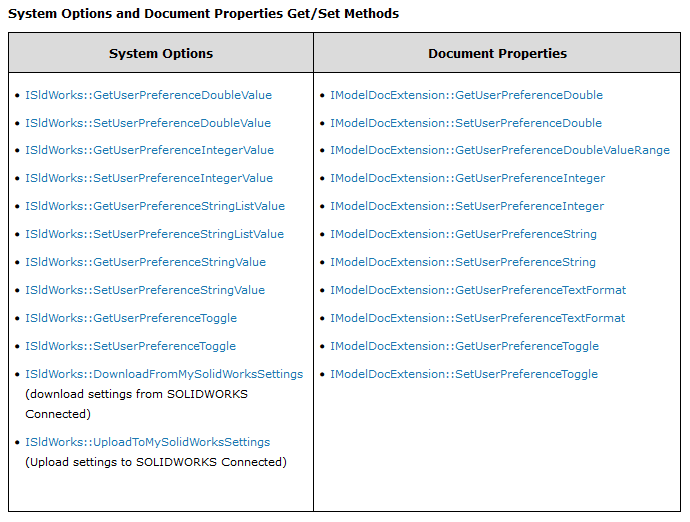
https://help.solidworks.com/2023/english/api/sldworksapiprogguide/Overview/System_Options_and_Document_Properties.htm?verRedirect=1

the enumerators are apparently the same for both document properties and system option, but the method to get them is different. I think you still get some value not really used, but at least now I undestand better.
image.png
System Option - ISldworks

Dim instance As ISldWorks
Dim UserPreferenceValue As System.Integer
Dim value As System.Double
 
value = instance.GetUserPreferenceDoubleValue(UserPreferenceValue)

Document Properties - ImodelDocExtension

Dim instance As IModelDocExtension
Dim UserPref As System.Integer
Dim UserPrefOption As System.Integer
Dim value As System.Double
 
value = instance.GetUserPreferenceDouble(UserPref, UserPrefOption)

Looking at your line of thought with the posts and threads you make, it seems that you are trying to figure out what are all the conflicting factors to then point them out efficiently to SolidWorks.

Either that or you’re looking to take the SolidWorks code and refine it and remove the ambiguities from it :laughing:

AlexLachance I am the PDM admin and “I had enough”. We had all sort of troubles and little by little we are fixing them. And I am trying to push SW devs as well as my VAR as we pay a lot of money in license fees etc and we need to make them pay back.

I am developing my own tools as I am basically alone doing the administration of 70+ active seats from deployment, to training and server maintenance and backup. I need to automatize and have solid tools (no phun intended) at hand to minimize manual labor and avoid errors I would have to fix later.
The more I develop the more I understand how SW is working behind the scene.
And it is quite a mess from my amateurish pov. (I am a mech eng not a programmer)

I feel you mate. I’m the CAD Admin for 12 seats and take care of all the stuff you mentioned, I’m no programmer, but I do understand a bit of programming and most of it’s logic. Defining how we work helped a lot in defining issues as well.

API settings may not correspond to registry setting.
One or the other may not get updated when those settings changed.

Some registry settings got moved to different subkey in different years.

Some keys with “default” value may not show up in registry.

Registry keys is first build and set AFTER SW first started and CLOSED.
NOT during installation.

So you’ll need to build a list (database/SQL) of all registry settings for each year and compare them.
Technically SW should “convert” last version settings to current version.
We all know how that goes already.

Frederick_Law I am glad you mentioned the registry (btw with 2023 they moved the videocard workarounds that used to be inthe “performance” node outside the solidworks 20xx key…100s keys and not even documented afaik)

automating with api helped me to remake templates and check against the old reference file what was different and what I missed Instead of browse 100s of menus plus new settings to update our drafting standard.

I splitted the registry in 2 parts (system option and the rest of ui rrleted stuff) then pdm registry, edrawings and simulation.
still a mess a some reg is ver4 and some ver5 for compatibility reasons they cannot be merged yet as they use completely different encodings and our paths have a lot of double bytes characters also sw will process only the ver 4 if you want it to “clean up” your registry.

I am aware that sw save the whole registry block on the first run and everytime you close SW(even if some setting is applied real time in the registry from what I see from process monitor).


Not being able to export and compare those settings out of the box after all those years… then Isuspect there are a lot of “dead leaves” inside the reg tree or just a mess of settings added here and there like the pinned flag of command manager that should be exported under user interface or the user colors…or the cryptic keys that sounds like “workaround2019” or datumplane12345whatever, mixing code patches with real UI settIngs how nice of them!

I appreciate the effort you’re taking here! I’ve considered doing something similar at various times, and I’ve never quite been burned badly enough to actually do it. But I’ve been close.

I did make one script that attempted to strip out the noise from the system options .sldreg exports, to make it easier to diff settings across systems. Working with the registry data may make more sense, but as Frederick_Law indicated, some settings may not flush to the registry at run-time. Perhaps you can force this flush to the registry by doing dummy system options exports.

Another trick you can experiment with (which you’re probably aware of) is starting Solidworks in “Rx Safe Mode” to bypass the system-options tools/settings. I don’t know if you can export these “default options”, but if so, that might be an easier reference point to collect than a fresh install.

I don’t know how many people on here would be interested in contributing, but this is the sort of thing that might make sense as a github repo. I imagine you’re developing powershell or python scripts to support this effort. Good luck!

One way is change every options in SW after first start so they’re not default.
Might need to export after start, restart, change all options, restart, export.
Don’t need to change any file name, path.
Change on/off, number, list.

Great work.

Another resource that I’ve used is Copy Drawing Option from Stefan Berlitz at http://swtools.cad.de/us_index.htm.

It’s a bit old, but easily updated to grab all the various values.

Good luck with your quest!

thank you very much for the link.
I downloaded the excel data and it looks almost what I was trying to achieve.
In its current form is very dated, but I was able to update one sheet to 2023 variables and I am going to test in the office next week. The variables for each category are 2-3 times more than it used to be in 2008!
One more reason to keep track of them.

Like my approach the author of the excel thought about the best way to give a unique number to each setting, sorting them by SW version (roughly speaking the “year”). Obviously It makes no sense to strictly follow that order for a fresh start with SW2023, but I went throught the inconvenience of keep its order and add at the bottom the new variable from 2009 to 2023 so they are easier to comment if something does not work.

For a version up a comparison sheet could be build using a copy paste of enumerator lists from the SW help , putting their SW version year in the left column, then put together two years sort by enumerator name and filter the duplicates so only the new enumerators are added at the bottom.
I like the author approach to use a negative year number to disable the enumerators that got superseded, obsolete or for internal use only.

Yes lot of work, but it must be done for parts, assy and drawings separately as many options are hidden if the correspondent format is not open in SW when editing the options.
Document properties (at least half of it) could be exposed only by API as the registry is not involved there, and I cannot miss our setup when remaking the templates for a new SW version.

You are most welcome.

The downside to all this is the names of the settings are not easily searchable or indexible from within VBA, at least that I could find.

I wound up copying and pasting the various names from the API help and then literally going through those one by one. Not all of them are settable, but it’s pretty straightforward to figure out.

Kind of a pain the first time, but after that not so difficult.

Getting this set up made creating new user system fairly trivial, at least after I got an IT person who was willing to do more than run the install daemon and accept all the defaults…

Unfortunately all this was done behind a very closed network enclave, so I don’t have any of it to share.

Good luck

I leave it here as a warning to what happened to me today.
I was editing my templates from the dot files and some new setting (drawing transparency) was not applied to the drawing created with that template.

in the template file document properties the flag is OFF
same flag, in the file generated from the template is ON.
The advice to avoid editing slddot files is absolutely useful to avoid mistakes.


EDIT while the advice is still valid.
i discovered the transparency setting is actually bugged and has already a BR opened.

Do you have MS Access?
I can create table and database there and import excel file with registry settings.

No we do not have access.
I dumped all the settIngs in a txt format numbered and run a comparison.

I have finally put together a working macro with a GUI that performs the following operations. I use it in conjunction with our drawing standards file to recreate and compare SW templates from scratch and check the system options applied.

  1. It can switch between system option and, if a file is loaded, dump all its document properties (since they use different API methods to get and set their current values the same enumerator is read in two different ways)
  2. the macro can read all the enumerators in SW by type. toggle (true, false) for checkboxes, double, integer for option values, strings for system paths et sim and all the fonts settings inside sw. There is also a list of all the enumerators with their mnemonic name so you can guess more or less its purpose.
  3. once read the settings is possible to dump them in a text file.
  4. it is possible to paste multiple parameters in a textbox and batch write them in SW or the document. (you need to close sw to save them into the registry or save the template to keep them

The approach is quite rude, but it works for me. looking at the documentation, the SW parameters are divided by type into some enumerato list: double for not integer values (like lengths in meters and angles in radians), integer for sliders or choice from drop down menues, strings for path and labels and multiline text for fonts objects.

The advantage is that enumerators are just numbers and at every version of SW they append the new ones at the end of the list. a deprecated enumerator could be just ignored and you do not need to keep track of every single enumerator, just copy and paste them from the documentation to update the macro. (it is a bit more complex, but it can be done with excel)

I put all the enumerators in a VB dictionary linking the enumerator name and its progressive number automatically. SW publishes the enumerators by their name in alphabetical order, so they get all mixed up without a logic order at every release, and tracing them manually would be a pain.

So at every update I do not need to resort them, since they are not sorted by name in my dictionary, but with their real progressive number which is preserved at every release and unique.

The get result is displayed as text. e.g. the enumerator number 12 for doubles would be

DBL12 = 0.001

for system options and

document_DBL12= 0.001

for its equivalent in document properties.

At this point I simply do not care to sort them by category or try to group them, it is just too difficult and useless since I care to compare and spot the new enumerators at the end of each list when comparing them with an old version SW dump.

I do not care to divide them for parts, assembly or drawings either: I just dump them if the enumerator does not make sense for the current file type, just let it be. The utter mess SW made for their settings is absurd and I am not going to fix it or spend time trying to understand a logic that is simply not there.

Dump, compare, write back.

When I want to write back something I can copy and paste the values from a dump file (e.g. from a old SW version) .

The software will read amd scan every line, recognize the type of enumerator, its number, and check the value against the type before attemping to write it.

(a number for integers and doubles, etc.)

In my test I took 600+ enumerators dumped from sw2023 and write it back into a clean template created with sw 2025.

Then dumped back and compared: it worked.

Unfortunately the code I made during my working hours is property of my company, but I have some proof of concept and mockup to show you. I think I could add to this post later some pic.

I am not a software developer so bear with my lack of a proper language and background, the macro is not public as I developed it in my workplace , but based on some background work I did for study at home which is the the base for this post.

I will explain the background of my macro and my understanding of some problems with settings in SW.

The first basic issue is that SW devs basically put together documents properties and system options in the same huge list of enumerators. To add further confusion (at least for me) some enumerator makes sense only in part, assembly or drafting environment.

In the end the enumerator values for “system options” are written inside the windows registry when closing the SW session, while the enumerator values for “document properties” are written inside the document (or a template like .sldprtdot) after saving the file on disk.
Again, there are enumerators that does make sense only for system option (like SW search paths), but you can try to read them from the documents too, they (should) just return empty or a value without an actual meaning.

When reading and writing such enumerators, there are two distinct methods to do handle them depending on them being handled as “system option” enumerator (swapp method) or “document properties” enumerator (ImodelDoc2 extension method).
Pseudo code below to dump a value in a string variable for visualize it e.g. in a textbox

'System Options (swapp method) written in the HKCU registry upon closing SW
'ISldWorks:: GetUserPreferenceDoubleValue
'ISldWorks:: SetUserPreferenceDoubleValue
’
'ISldWorks:: GetUserPreferenceIntegerValue
'ISldWorks:: SetUserPreferenceIntegerValue

'ISldWorks:: GetUserPreferenceStringValue
'ISldWorks:: SetUserPreferenceStringValue

'ISldWorks:: GetUserPreferenceToggle
'ISldWorks:: SetUserPreferenceToggle

'ISldWorks:: GetUserPreferenceStringListValue
'ISldWorks:: SetUserPreferenceStringListValue

'example
Dim swapp As SldWorks.SldWorks

Dim category As string

Dim Dumpstring as string

Set swapp = Application.SldWorks

Dumpstring = Dumpstring & category & Key & " = " & swapp.GetUserPreferenceIntegerValue(Key) & vbCrLf 


'-------------------------------------------------------------------
'Document Properties (ModelDocExtension method) written inside the file upon save operation
'IModelDocExtension:: GetUserPreferenceDouble
'IModelDocExtension:: SetUserPreferenceDouble
'IModelDocExtension:: GetUserPreferenceDoubleValueRange

'IModelDocExtension:: GetUserPreferenceInteger
'IModelDocExtension:: SetUserPreferenceInteger

'IModelDocExtension:: GetUserPreferenceString
'IModelDocExtension:: SetUserPreferenceString

'IModelDocExtension:: GetUserPreferenceTextFormat
'IModelDocExtension:: SetUserPreferenceTextFormat

'IModelDocExtension:: GetUserPreferenceToggle
'IModelDocExtension:: SetUserPreferenceToggle

'example
Dim swapp As SldWorks.SldWorks

Dim swModel As SldWorks.ModelDoc2

Dim Dumpstring as string

Set swapp = Application.SldWorks

Set swModel = swapp.ActiveDoc

Dumpstring = Dumpstring & category & key & " = " & swModel.Extension.GetUserPreferenceInteger(key, 0)  & vbCrLf 

Enumerators are also divided in data types. the main reference in the API help is here:

It connects every enumerator with the UI (where applicable since there are some enumerators not present in the UI and some deprecated value too).

The enumerators used for both Get and Set operations are

swUserPreferenceDoubleValue_e Enumeration here
swUserPreferenceIntegerValue_e Enumeration here
swUserPreferenceStringValue_e Enumeration here
swUserPreferenceTextFormat_e Enumeration here
swUserPreferenceToggle_e Enumeration here

If we look at the links above we can notice that SW devs just list the members in alphabetical order, like:

Member Description
swAutoSaveDirectory See System Options and Document Properties.
swBackupDirectory See System Options and Document Properties.

The second main issue is that every new SW version is going to add more members to the enumeration list, but to keep the backwards compatibility those members must keep the same unique “ID” . If a new enumerator is added between the two members above their order (alphabetical) is just messed up, while their “ID” is kept the same for backwards compatibility.

In other words swAutoSaveDirectory must have the same “ID” in both SW2012 and SW2026 independently from its position in the enumeration list inside the documentation published online with the API help.
Those “IDs” are not even listed in the documentation and to update them in the correct ID order every time is just not feasible. Or I am too lazy for that. Sorry.

Also the enumerators grouping logic in the UI is quite questionable and I prefer to dump all the settings, without caring too much to categorize them like other people tried to do in the past when challenging the SW settings. Like many others I went to configure SW with the UI basically once, wanting to preserve that baseline when upgrading with a new version of the software and looking for differences and newly added entries only.

What I came up, is to build a vba dictionary (actually one for each enumerator type) sorted by the unique “ID” that sw associates to each enumerator. And compare raw text files with ID / VALUE only.
So I have to copy and paste the members list from the API documentation and let the macro do the sorting according to their unique “IDs” automatically.

Right know I am doing it in a two steps process and I would like to make it simpler, but I run out of ideas:

  1. Copy the enumerators from the documentation to EXCEL
  2. Generate a VBA string for each enumerator and copy it back to the macro section for each dictionary generation.

It generates something like the code below:

dicSTR.Add swUserPreferenceStringValue_e.swAutoSaveDirectory, “swAutoSaveDirectory”

dicSTR.Add swUserPreferenceStringValue_e.swBackupDirectory, “swBackupDirectory”

where dicSTR is a dictionary for the string type enumerators composed by the enumerator “ID” (swUserPreferenceStringValue_e.swAutoSaveDirectory returns an integer value) and the string with the enumerator member name “swAutoSaveDirectory“ (from the documentation).
After sorting the dictionary by ID you have the “real” order SW uses to handle the system options and the documents properties.

For example dumping the enumerator categorized as “toggles” (basically every check box in the settings with two states on=true off=false) there are 795 IDs (from ID 0 to ID 793 and one stray ID 5030 which is probably some messed up stuff from a past version of SW that made it to production, I am not sure but that is the state of the toggle list)

0 False
1 False
2 False
3 False

793 False
5030 False

When upgrading from SW2023 to SW2025 I dump both version toggles and just text compare them with Notepad++ or another software. So I can see all the additions at the end of the ID list and all the settings that are different between the two SW versions (like to catch an unwanted baseline modification).
Comparing two text files formatted as above is simple and makes the differences immediately noticeable.

For example SW2025 adds new options for toggles (even more check boxes yeah!) from 794 onward. Looking at their mnemonic member names it is very likely to guess where they belong in the UI, or just too look them up in the documentation help with the first link above.

To simplify the dumping process, after selecting “system options” or “document properties”, I get all the settings at once, divided by type and write them into different strings terminated with CRLF: one text line for each ID with its correspondent value.
It can be done with a FOR loop for each Dictionary, so the size of the dictionary is not important even if the new SW version have additional enumerators.
We do not have to care about enumerators order.

For Each Key In Dic.keys 

Dumpstring = Dumpstring & category & Key & " = " & swModel.Extension.GetUserPreferenceInteger(Key, 0)  & vbCrLf

Next Key

'The result of the above string will be a dump like
'document_TGL0 = False
'document_TGL1 = False
'document_TGL2 = False
'document_TGL3 = False
'...

'where category is a string "document_TGL" meaning "document properties '(document_) for toggles(TGL)" followed by the value (true or false for toggles) 

Once we have a string with the whole properties dump, it can be saved to a text file or shown on screen inside a text box.

We must keep in mind an important point:
this is not the SW UI so there are not checks on the coherence of the values or their range validity (actually it could be done for doubles using GetUserPreferenceDoubleValueRange method), but there is no guarantee that interconnected properties and values wrongly interact and end up behaving strangely.
In our OLD templates I found a double enumerator set at ZERO (hole table text position and angle) while it was not supposed to be ZERO to begin with since it was out of range and zero should be not allowed. Why our template was like that is a mystery to me.

A bit more about the enumerators type and their main use in SW. Or at least what I noticed looking at them.

  • Toggles are for the checkboxes in the UI (true = checked false=unchecked) About 795 toggles.

  • Integers are for item picked from a list like a dropdown menu or a slider like the image quality with a “finite” number of steps. About 620 integers.

  • Doubles are for numeric inputs in general, like arrow size for drawings or other numerical entities. they are in meters and radians when used to dimension something. About 218 doubles.

  • Text format is used for the fonts: It is an object which includes font name, size, attributes. There are like 49 fonts settings in SW and their details get listed as

    document_TXT49 =
    MS UI Gothic
    False
    False
    0.0035
    12
    0
    False
    False
    0
    0.001
    0
    False
    False
    False
    False
    1
    It gives us little about the meaning, but it is useful (IMHO) to compare fonts settings AT GLANCE in two different templates. Then incorrect the font could be fixed later using the SW UI. Those flags are basically italic, bold, underlined, font height and many other detailed settings we usually do not notice inside the font dialog.

  • String values are basically LABELS (drawing views section name etc) and PATHS (system option search path etc). There are about 134 strings.