(SW-2024 & Win-10). I’m confused how the right-click SW utility within Windows File Explorer is supposed to work. This is the popup where you can invoke Pack And Go etc. I thought there was a way I could right click on a part file, enter the search path details & results would show me all the places it was referenced, particularly of interest various assemblies that used this part. But after entering path & optional folders, nothing happens. What am i doing wrong?
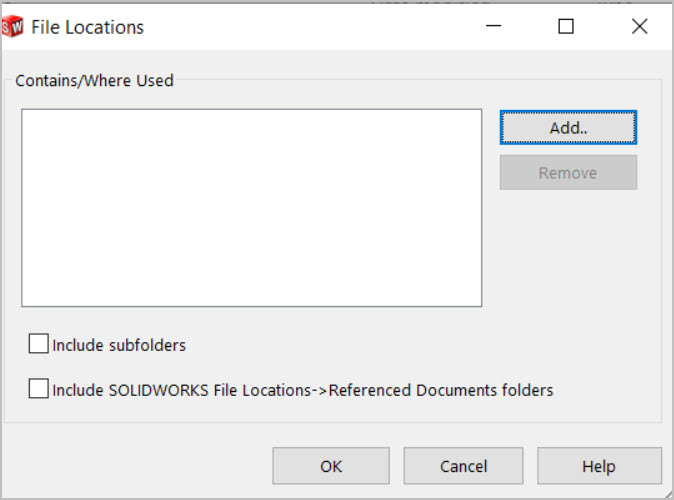
This is the place to direct to the locations where the search has to take place. So all locations where SolidWorks files are saved. After setting this, using the SolidWorks file utility “rename” on a SolidWorks file, in Windows File Explorer, the search is started to show where this file is used.
I dont quite get what you mean (or maybe the capabilitity of the utility). I’m not intereted in renaming the part & having the new name be updated in all the assemblies that use it. I’m wondering if there is way for it to tell me the assemblies, drawings whatever that make refernce to the Part in question. Like if Part-A is referenced in Assembly-B and Assembly-C can it show a list of these associated files?
If i just use the Windws search, its a standard search that looks for all occurances of the filename name, no regard to if its referenced by other SW entities like assemblies or subassemblies or drawings. thats what I’m getting at.
I think that you need PDM for that and then it will only show where it is used inside the vault.
Ah that could be it. And I forgot to mention I’m not using PDM
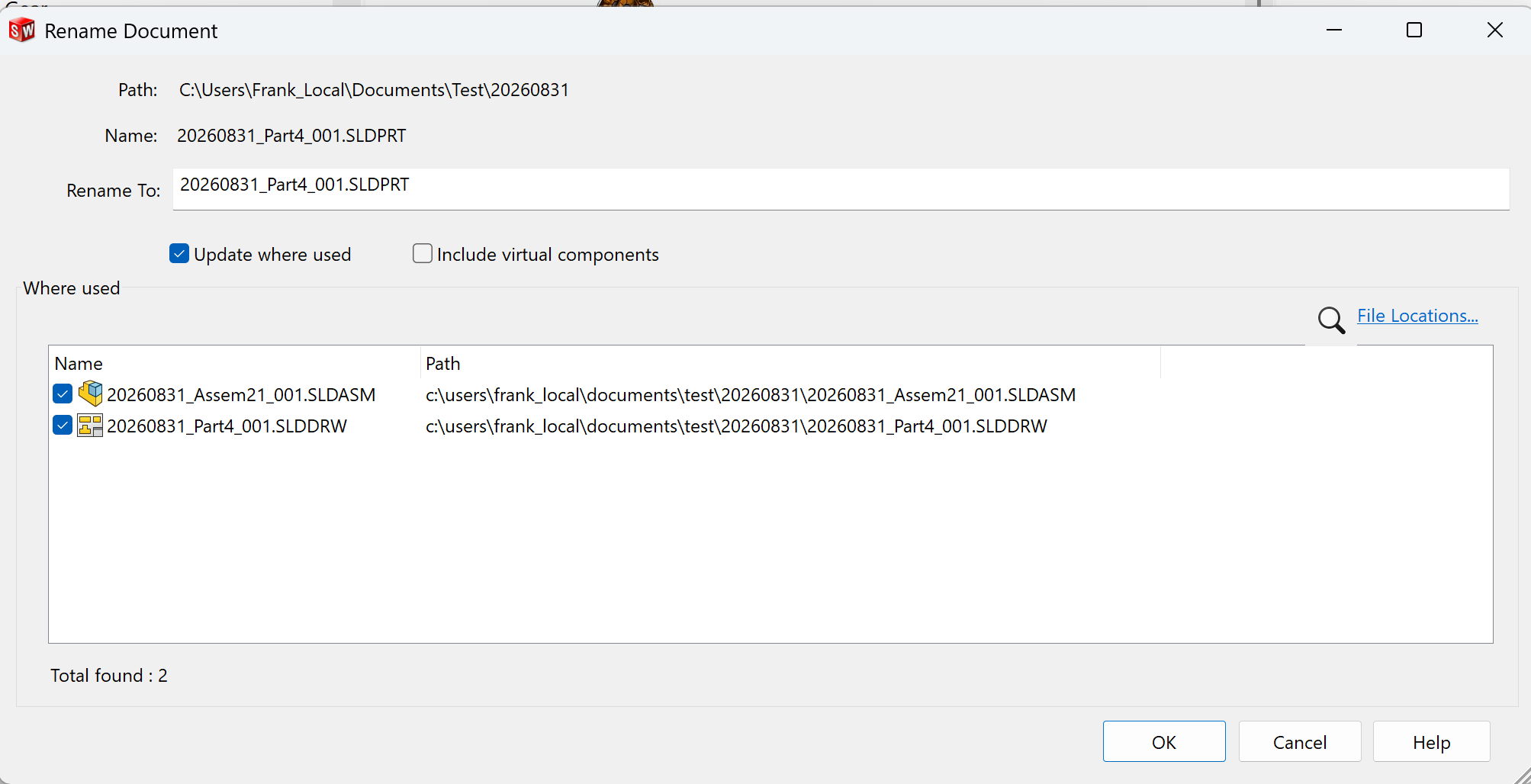
No, the intention is not to rename, but find where this part is used. Since the SolidWorks Explorer has been removed, this is the only way I know to perform this search without PDM. After you seen the results, made a screenshot, you close the window. In the example below, the part is only used in a single assembly. If it would be used in a drawing, the drawing file would be listed as well, as in the second example.
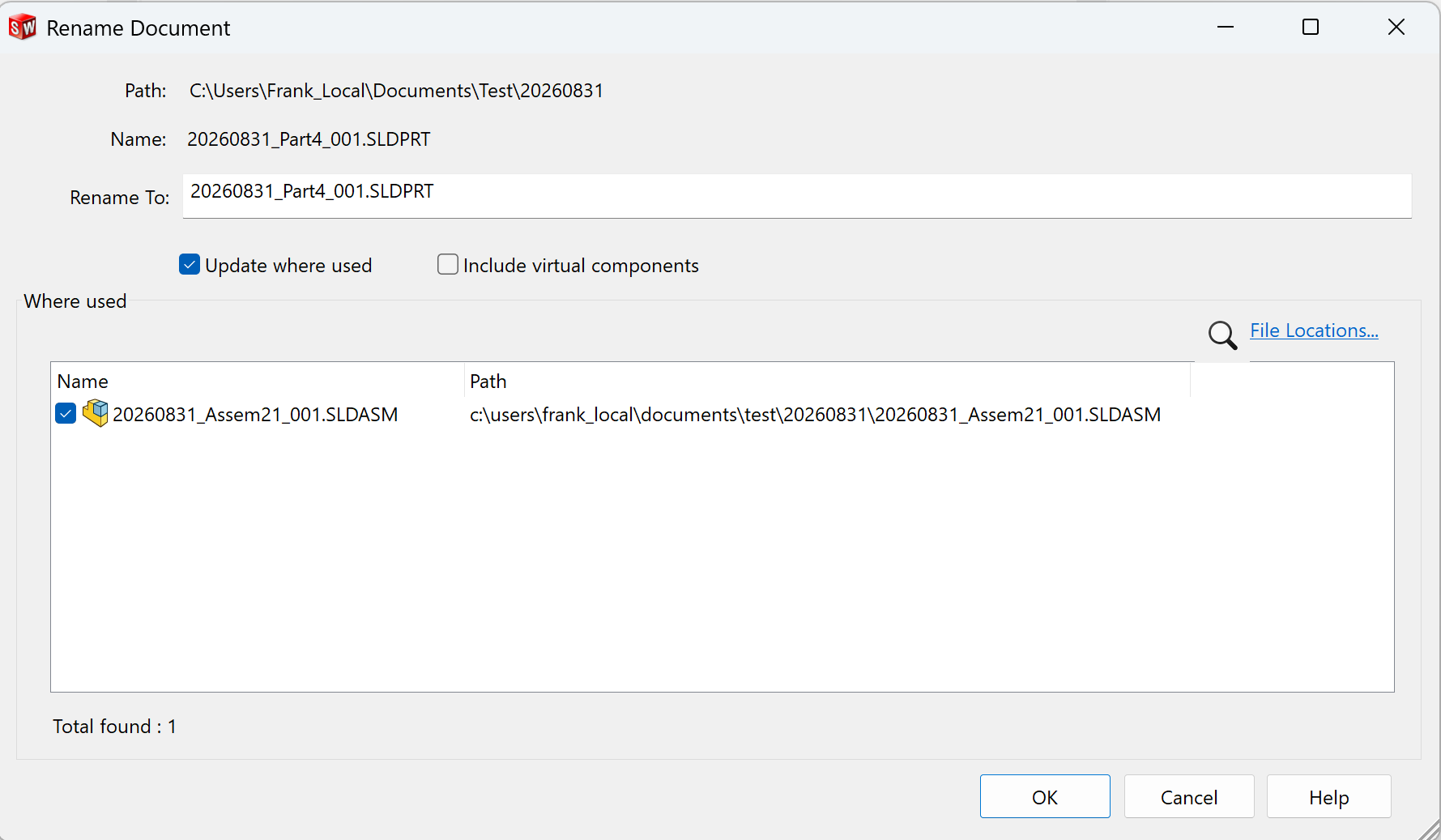
I had a little program (Bibotac) able to run such a performance in a fast manner (Even for more than 10 thousand files). I stopped sharing it because of the new Dassaut System policy. Does anybody know if the risk of penalty is still active or if they have changed their mind.
Hi,
Not sure if you all are aware, but getting to the right click menu in Windows 11 out of the box consists of right click and showmore options then the dialog to get SolidWorks options.
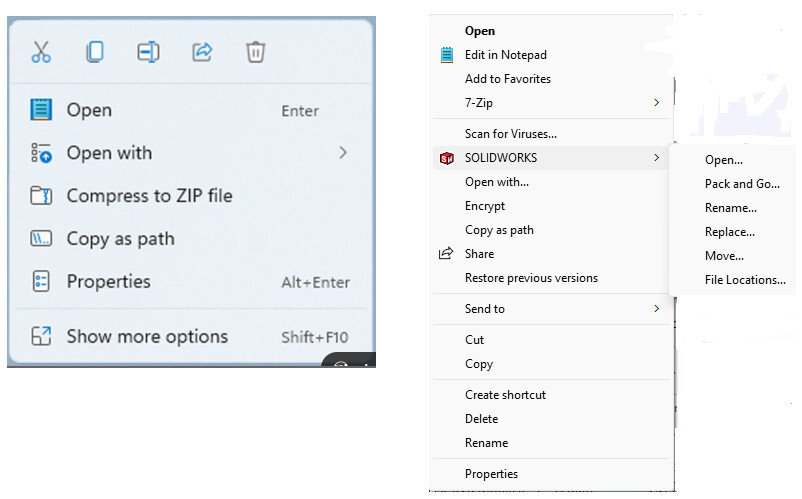
Here is a command line you can run in the Terminal App that will restore the function, also on the internet: (you will need to restart for it to take effect)
Terminal windows 11 right click menu
reg.exe add “HKCU\Software\Classes\CLSID\{86ca1aa0-34aa-4e8b-a509-50c905bae2a2}\InprocServer32” /f /ve
Regards,
Jim
they have lost their mind…
Anyway, would like to test your program.
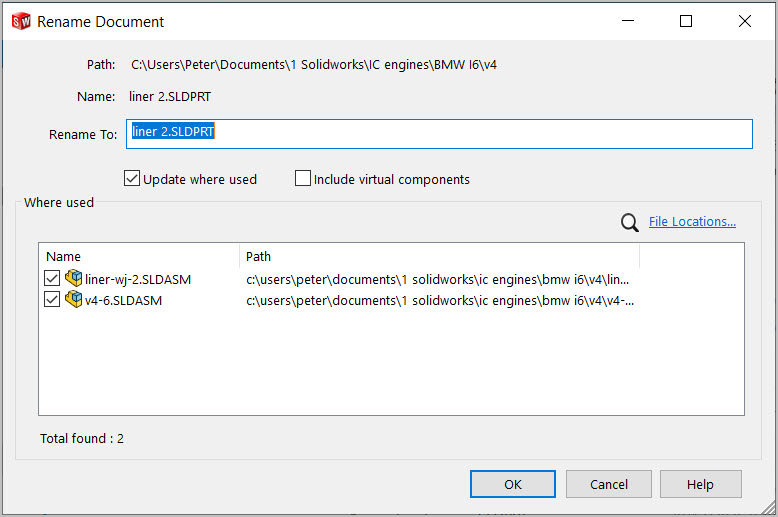
Yeah, that’s it. It’s a shame that it’s one of the only bits of functionality that’s left after they dropped SolidWorks Explorer, which used to have ‘where used’, and other useful things… I guess it was probably a marketing decision to force more people to PDM or PLM…
What in the DS system policy would stop you sharing the program?
So best to not inform Dassault about this, otherwise it might get blocked, just out of marketing objectives.
Honestly I think they dropped it because it was old and likely need to be refactored for new Windows versions and they didn’t think it was worth it. The SWX Explorer UI was not good and was trying to be “flashy”. They missed the mark and should’ve added a right click where-used option when they removed Explorer. I’m sure the decision to push to PDM / 3dx cloud was a factor as well.
The Solid Edge Design Manager is what they shoud’ve copied. It is excellent.
@Bibotac They have revised their changes regarding the Document Manager API. They will not start making customers bring their own key, thank god. But I think you still need to be a partner product as a requirement for releasing a product that uses the document manager. I don’t see your product listed on the partner website.
I think they dropped SW Explorer because every solution that’s not PDM is clunky. A part does not know where it’s referenced, so you have to check every file. That was never a great solution.
The proper solution is to change the part file format so it does know where it’s referenced. Seems pretty straightforward. Add a part to an assembly and an attribute gets added to the part file with assembly path. Same for drawings, derived parts and such. A list of strings is trivial in the grand scheme of things.
It is straightforward if you store a static list. But it’s impossible to keep this list in sync with all your models. Every time you change a drawing or assembly, or move a part, all referenced files must be checked out, updated and saved.
So you end up moving the list of relations to a database, some form of PDM.
Even back before we had PDM and working on a network drive, this wouldn’t work. We had 3 main folders, Inwork, Release, and Library. Users only had access to Inwork and we had a manually ECO process that moved files (by me) from inwork to release. Users then copied files from Release to create the next revision. Since they couldn’t write to Release and Library, no way to write and store the where-used info.
You could write a program to storeinof i text files and control read/write premissions somehow, but now you are getting back to what the orginal PDM/Works product was.
Yeah, it’s pretty much impossible to store where used data in a file. Maybe with two or three users and incredibly tight file management discipline. I could not imagine how a process would ever be able to update all the files, so many will be locked by other process on other computers. Will end up needing a service running on each machine with a list of child files to update that are all locked.
Back around 2017 we were still in Solid Edge and no solid PDM options. So the only where used search was in a tool called Design Manager, previously Revision Manager. It was a great tool and I substantial parts about it, even in PDM now. It did brute force where used searches on demand. As a step in the direction of having some file management equipment, I’ll started with a file indexer. It used FileSystemWatcher functionality to know when files were created, modified, or deleted. Solid Edge files are a compound file that, with the help of other’s public domain work I managed to extract the file references and other metadata. Two database tables, one for files the other for file ↔ file relations. A very humble (actually rather crappy) GUI to access the info. It had Where Used and Contains trees side by side with thumbnails and some metadata.