I noticed after I imported some background images which were initially quite large, after I scaled them down quite a bit to desired dimensions, for some reason the screen real estate defaults to something big & wide like this. I’m guessing related to the original image size? The image itself is I’ve centered on the origin & the planes are just a bit larger so that doesn’t seem to be the issue. If I click Zoom to Fit this is what I get. Is there any way to reset the view to something more reasonable?
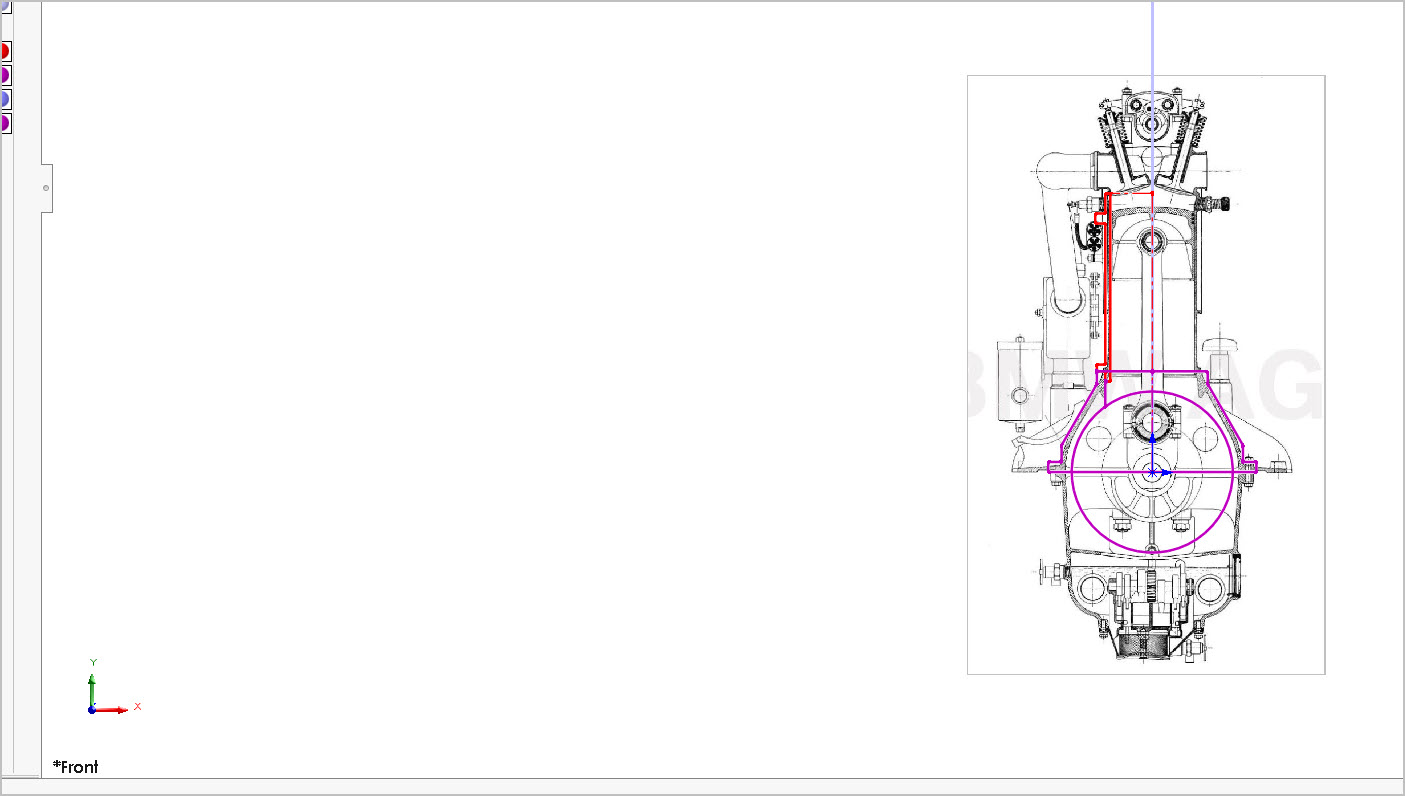
I had seen this issue, and this was related to the plane sizes or their changed positions.
Try importing this image into a new part (which shows a correct behavior on zoom to fit), and check. Other option is roll back the image sketch, create a new sketch and see if you get the same behavior. If yes then it is related to planes positions.
Thanks. I also forgot to mention SW2024-V5
I’m not quite sure I follow your suggestion (import this image into a new part). The original image was much larger, I ‘sized’ it using the blue sizing tool and/or the image sizing corner handles, then saved. But I think that essentially freezes the image size within SW (at least I don’t see a way to lock it which would be useful & might invoke some kind of minimization/ scree re-scale?
Now that I know the native image is large relative to real world size I’m scaling to, I could shrink it in a photo editor & import that. Seems to me I tried this before. I always get hung up on interpreting resolution settings & the image lines were much grainier. Likely lack of knowledge on my part. This source image was made from a Snagit screen grab of a PDF so I didn’t think it would be super large to begin with. Front image = 629x1053 115KB. Side image = 1258x872 222KB & my part template is set mm if that helps.
Attached pic - If I save this ‘master’ part file as a separate part file & develop an individual 3D shape from one of the overlay sketches, it still reverts to the same wasted real estate when zoomed default with the background image on. If the image/sketch is suppressed it zooms the part as normal.
For bonus points, I’m constantly turning the image (which is within the sketch that imported it) on & off to reference it & then get it out of the way. I tried accomplishing switching on/off with a configuration & display state, but it doesn’t seem to work. Something must be ‘special’ about the image embedded within the sketch unless I’m missing a subtle detail.
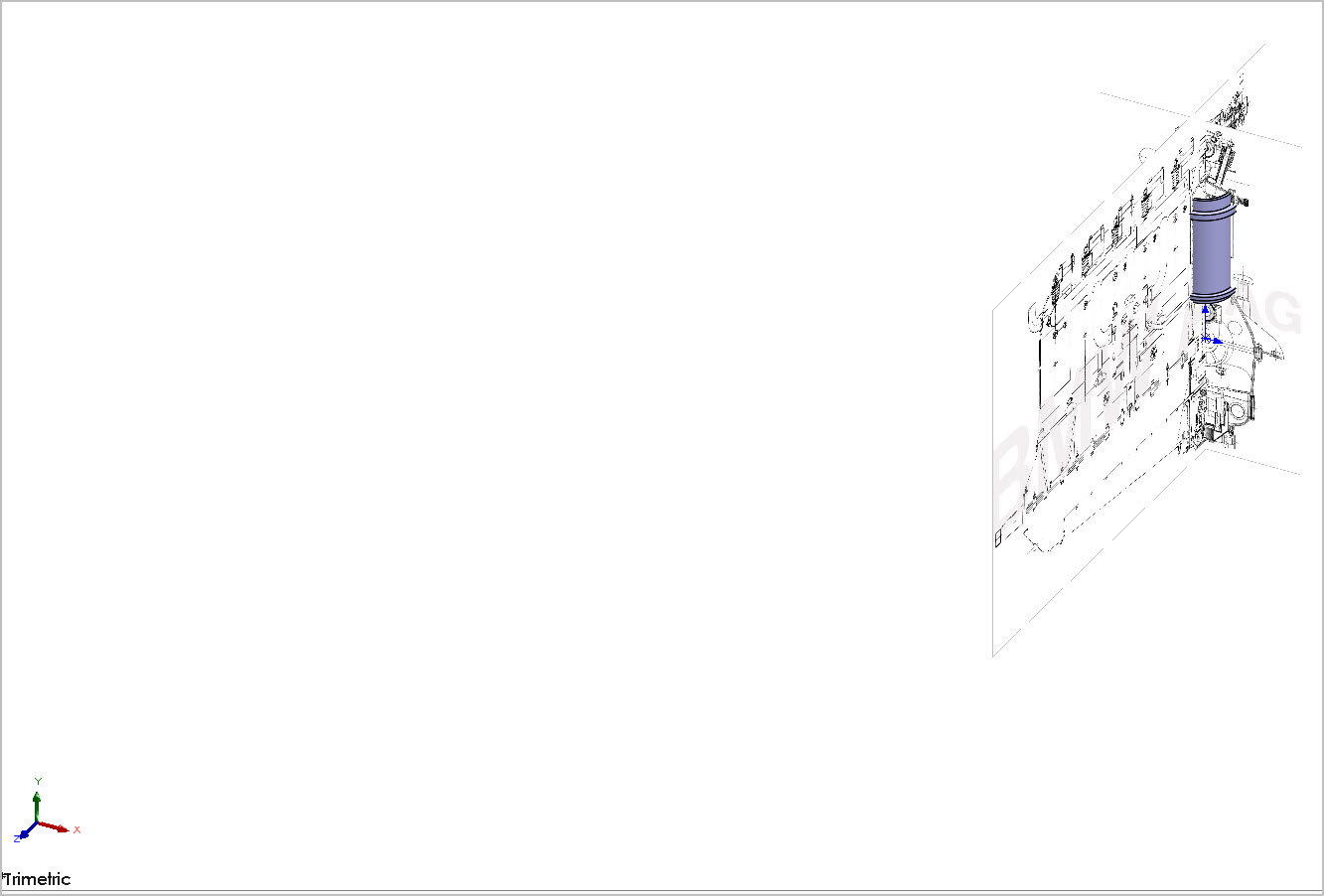
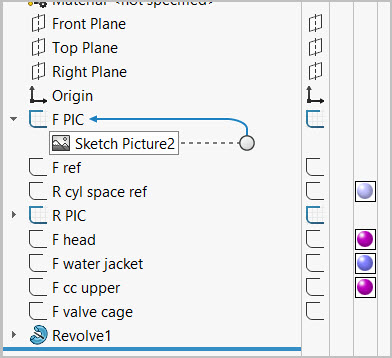
It has been a few years since I have had this problem. I think what I did was, get the sketch in the picture the correct size. Copy the sketch picture. Past it in a new sketch. Delete the first sketch. I may have used a new part or a copy of my part during the process. I’m sorry I don’t have better details for you. SolidWorks does seem to remember how big the picture was when it was first brought in and size the limits of the part based on that.
Sorry for a late reply. Roll back mean, to drag the roll back bar up to that sketch such that it is suppressed (with all the features below it). OR you can try suppressing this sketch, and see if you still see the same issue.
Thanks. I’m not exactly sure how I resolved it, but brought the image into an existing part sketch, repositioned & sized the image just using the corner handles. It now zooms nicely relative to existing planes. This time the image sketch was lower in the tree so I thought that might have something to do with it.
So I tried on a brand new sketch using same part template & just the image again, back to top of the tree. Same thing, once its reduced roughly within default planes, it zooms to fit just like any normal sketch. Now I can’t reproduce the original issue. Maybe I messed something up while manipulating the image or the second image corresponding to other plane was somehow overriding? Sorry for the bother. I’ll consider it magically resolved.