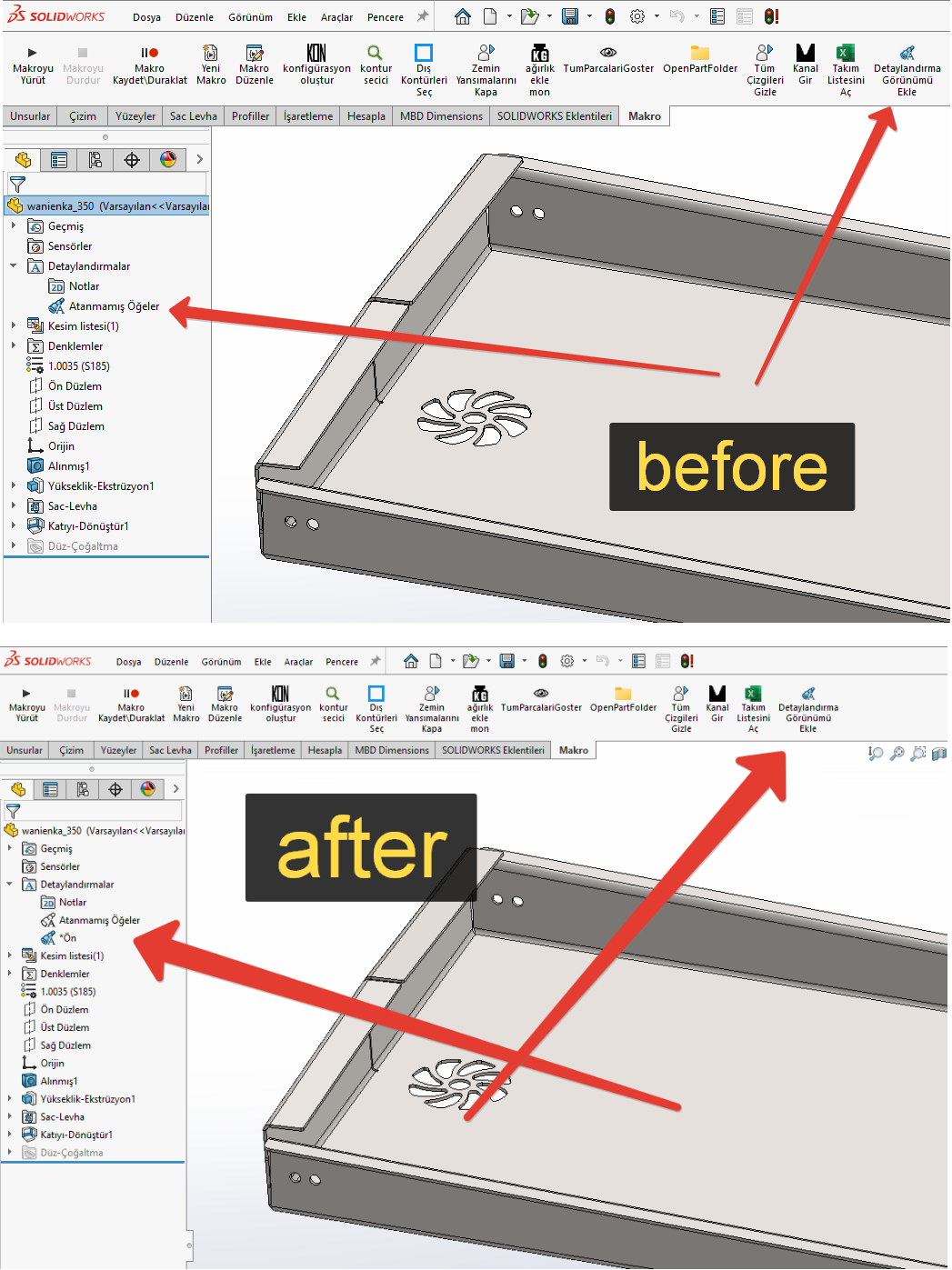
Hello everyone,
I’d like to share a problem I haven’t been able to find a solution for a long time. Maybe someone has a solution.
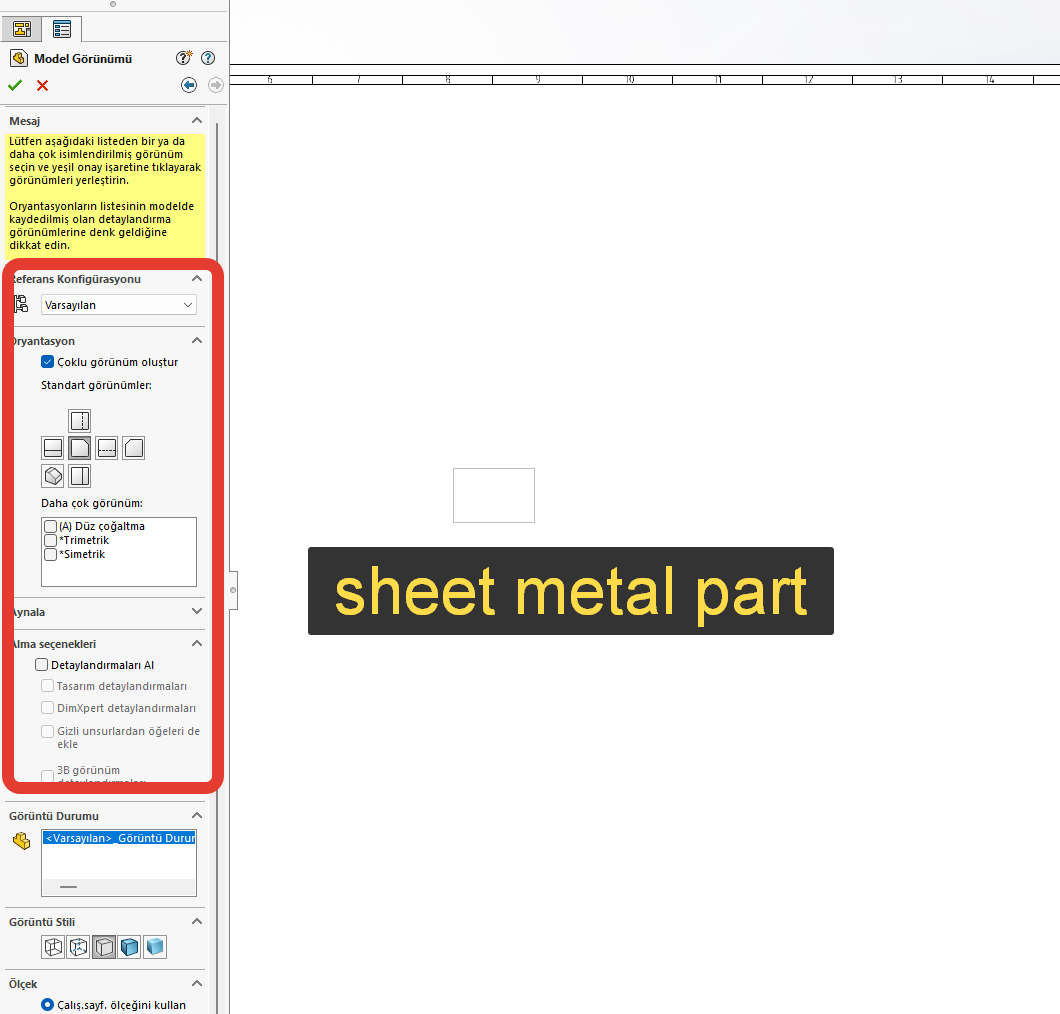
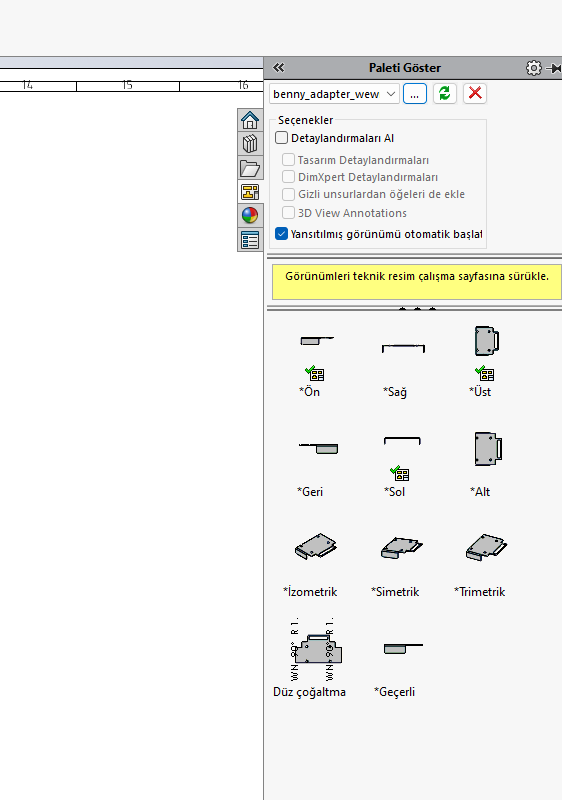
I add parts I’ve drawn as sheet metal to my technical drawing page using drag and drop, and the options appear in the left-hand menu. Everything works fine up to this point.
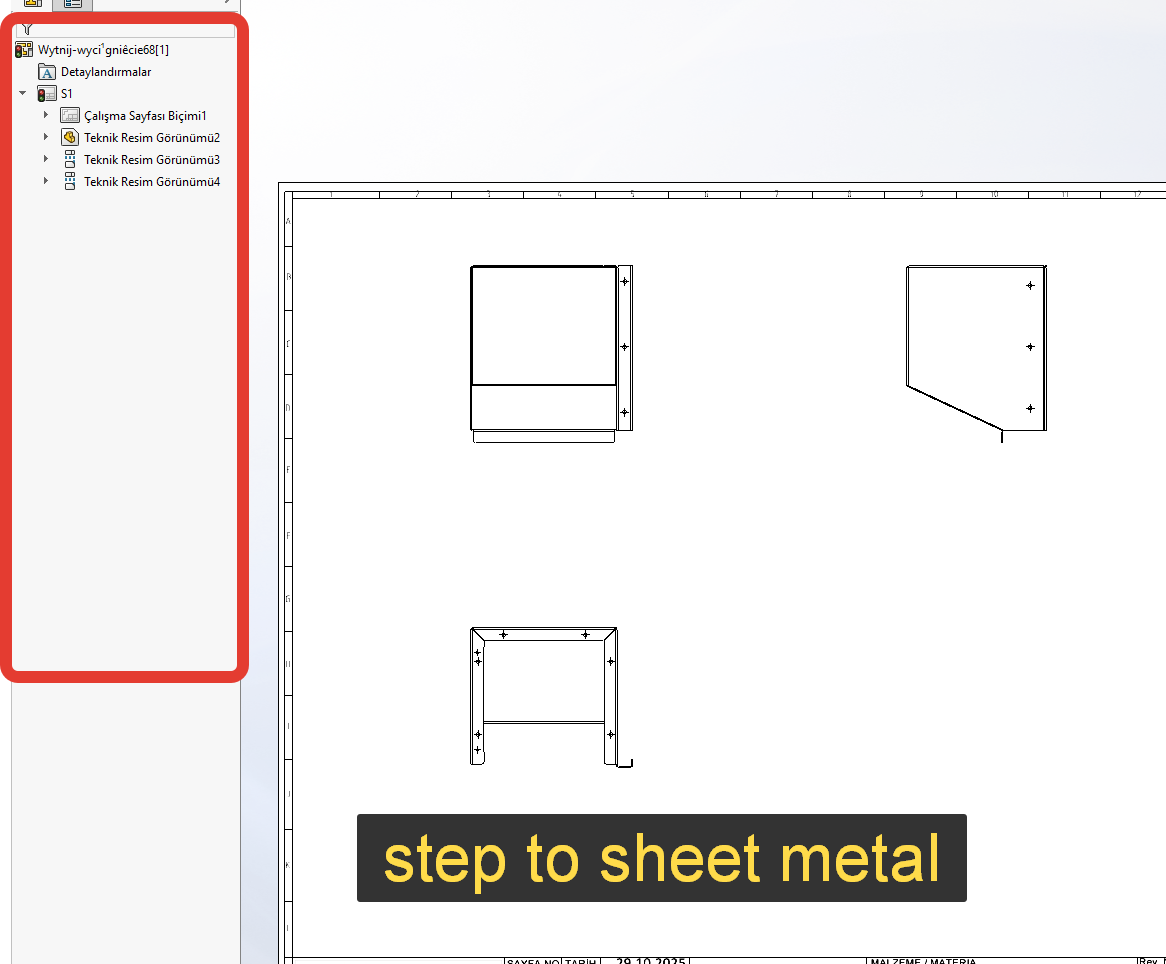
But when I convert my step file to a sheet metal part, the left-hand menu doesn’t open when I drag and drop, and it automatically adds three views.
This problem only occurs with drag and drop; everything works fine when I add it from a file.
As far as I understand, this problem occurs because even if I convert the step file to a sheet metal part, when I try to add it via drag and drop, it still sees the part as an imported file.
This problem occurs with imported files; everything works fine with solid or sheet metal parts.
Why don’t I want 3 automatic views? I’m adding a flat view on the page. When adding 3 automatic views, I have to delete the other two views each time, and I have to change the main view to flat.
Does anyone have any ideas about this?
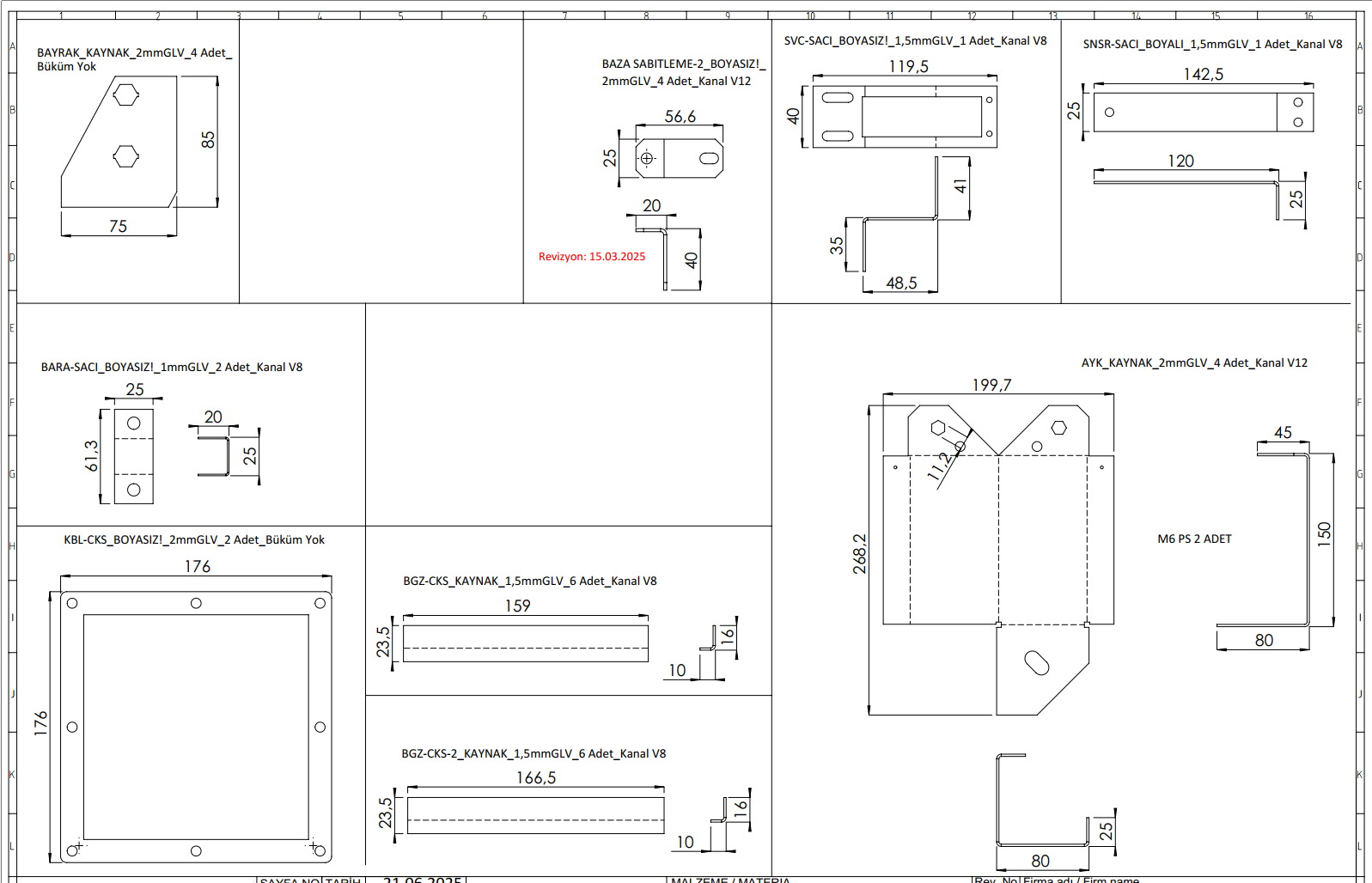
Below is a page that my company uses; we place many drawings on one page.
2 Likes
I do not see this issue here (both with single and multi bodies part), so must be something with your model file or drawing template. Any chance you can share some dummy files to check?
1 Like
I can duplicate this behavior. Made a simple sheet metal part with single base flange. Save as SLDPRT and save as STEP. Open STEP file, convert to sheet metal and save as SLDPRT. Drag original SLDPRT from Explorer into a new drawing, three views are not auto-created. Drag SLDPRT saved from STEP file and 3 views are generated.
1 Like
As Jim said,
this issue isn’t specific to a few drawings; it applies to all parts I convert from a step file to sheet metal.
Convert any sheet metal drawing to a step file, then convert the step file to a sheet metal file, and drag and drop it onto an open drawing sheet. It will automatically create three views, but the selection window won’t open.
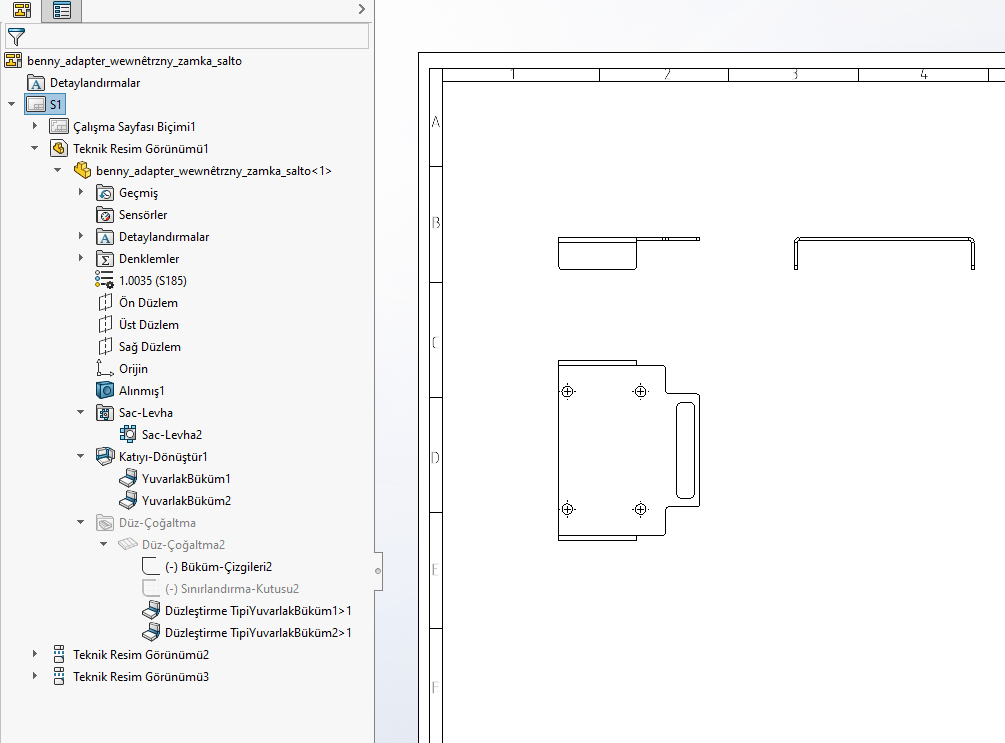
benny_adapter_wewnêtrzny_zamka_salto.SLDPRT (206.7 KB)
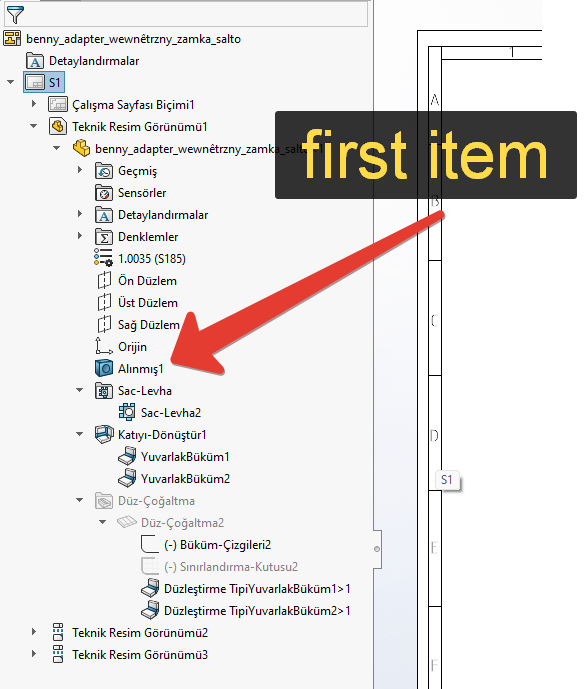
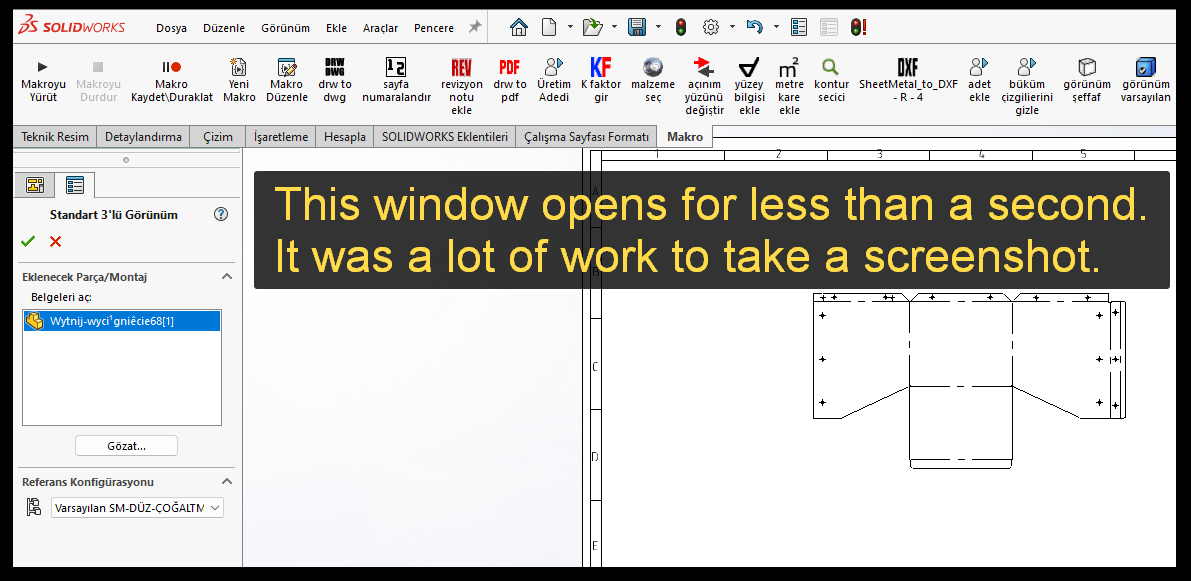
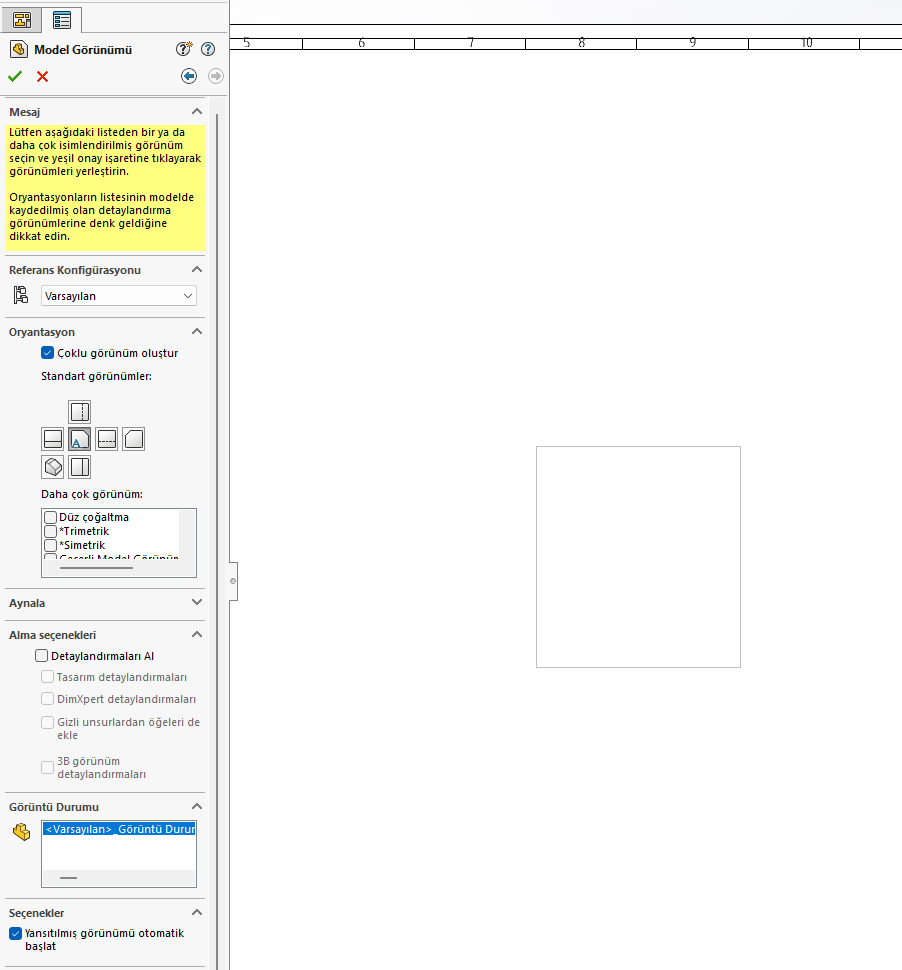
As far as I understand, SW sees the first element in my drag and drop structure, the import formation, but it cannot recognize it as sheet metal. But a window opens for less than a second (I am attaching the image)
Important: This only works for drag and drop. If we add it from SW, this problem does not occur. But I definitely prefer drag and drop! It’s much faster this way.
Curious, why do you make a sheet metal part, then convert it to a STEP file, then make a drawing of the STEP file part?
If you add a dummy extrusion as the first feature the 3 views are not created anymore.
It could be triggered by the dummy solid: I tried to recognize an imported solid and transform it in a parametric tree and the 3 views are no more generated in that case too.
I was able to replicate it, but weird that it was working OK for me yesterday.
This isn’t my practice; the actual practice is to convert step files received from customers to sheet metal.
The method you mentioned is intended for those who don’t have a step file converted from sheet metal to try.
Specifically, I convert step files converted from sheet metal to sheet metal from customers, but if you don’t have a file converted from sheet metal to step, use the method above and see the error SW gives.
Yes, the strange thing is that when you open the track from SW everything is normal, the problem occurs when you drag and drop it.
The feature recognition feature often works nonsensically and doesn’t convert to a healthy sheet metal, so I prefer the convert to sheet metal feature instead of the feature recognition feature. (When using feature recognition, adjusting the angle measurements is very tedious, but when I convert to sheet metal, it’s very easy to adjust with just KF.)
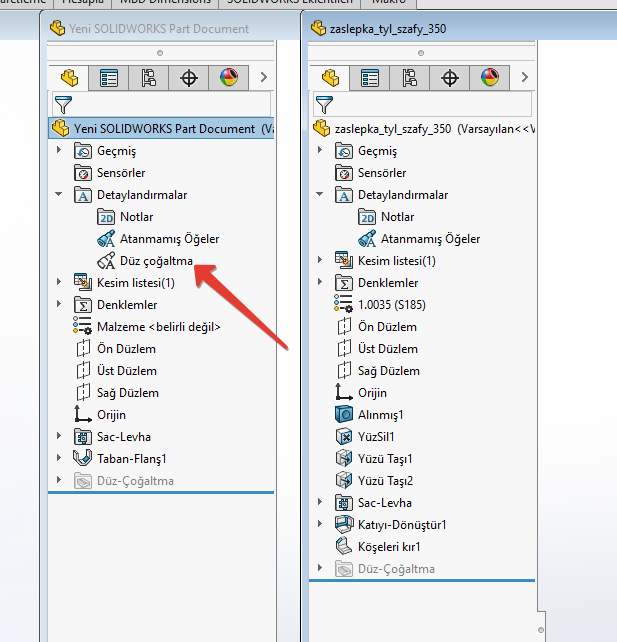
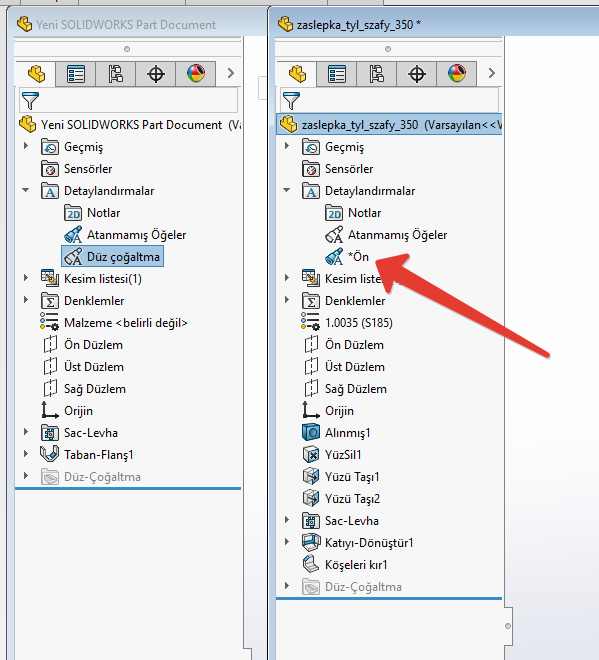
I know what’s going on. It’s actually documented in the Help file. The ‘bad’ behavior is actually the default. When you drag/drop a part or assembly into a drawing, it will create a standard 3 view drawing. However, if the part or assembly contains any annotation views, the property manager will open to let you select a single view.
Imported models don’t have any annotation views, so you get the default (bad for you) behavior. If you add an annotation view to the model, it will work as you want.
See:
3 Likes
The import uses a template right? Maybe annotation views could be added to the template?
Hey Omur,
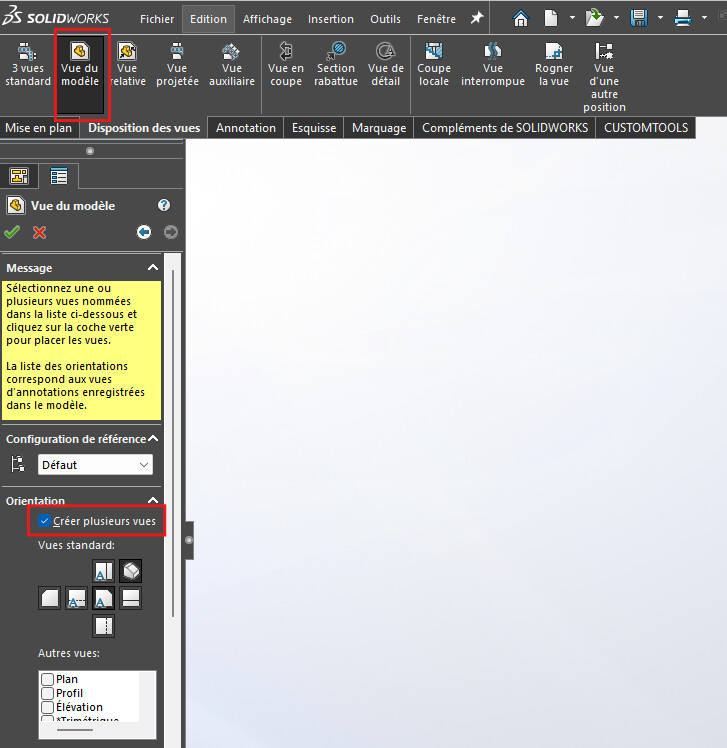
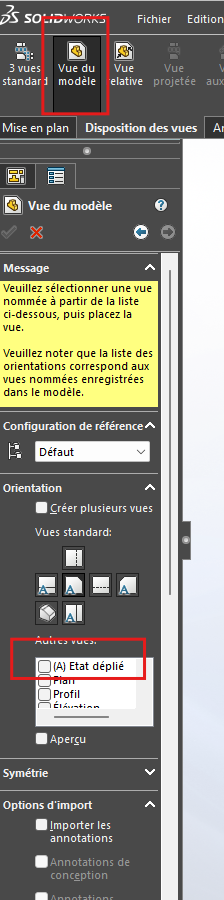
Check here if you have this checked inside “Model view”
If not checked(mine isn’t), then perhaps rather then creating the view from drag and dropping from the view palette, you could use the “Model view” to generate your flat pattern
1 Like
Your knowledge of the KB always amazes me Jim.
1 Like
Yes, that can be done. Either in the default template listed in System Settings, or to a particular template created for imported parts when the System Setting set to prompt the user to select a template for import.
1 Like
Oh, the KB was useless for this problem. I checked.

This came straight out of the SOLIDWORKS Help file. I stumbled on it by accident. I was testing Omur’s problem and after it placed the three views, I did an Undo to get rid of them and the the undo operation was named ‘Undo Standard 3 View’. So I searched the help file for ‘Standard 3 View’ and one of he links that popped up listed all the ways to create a Standard 3 view, one of which was drag and drop, and that link had the note about Annotation Views changing the Drag/Drop behavior.
5 Likes
Still, I’m always impressed seeing how you can navigate through the KB and the Help files, but that explanation makes a lot of sense. You’re seeing the programming interface that does the callouts and so you’re seeing directly the command that causes it and can search from there.
1 Like
Hey Jim, I declare you the hero of the century.
Despite my long search (including this Genimi-chatgpt), I couldn’t find this detail.
You’ve ignited a huge revelation in my head.
Now I can add an annotation view with a simple macro when converting step files to sheet metal.
Thank you so much for saving me a lot of trouble.
And thank you to all my friends who tried to help.
And now everything is fine!
Thank you to each and every one of you for illuminating my world.
4 Likes