I threatened I might bring some posts over from Reddit, and here is the first one. I suspect I already know the answer, but it doesn’t hurt to ask.
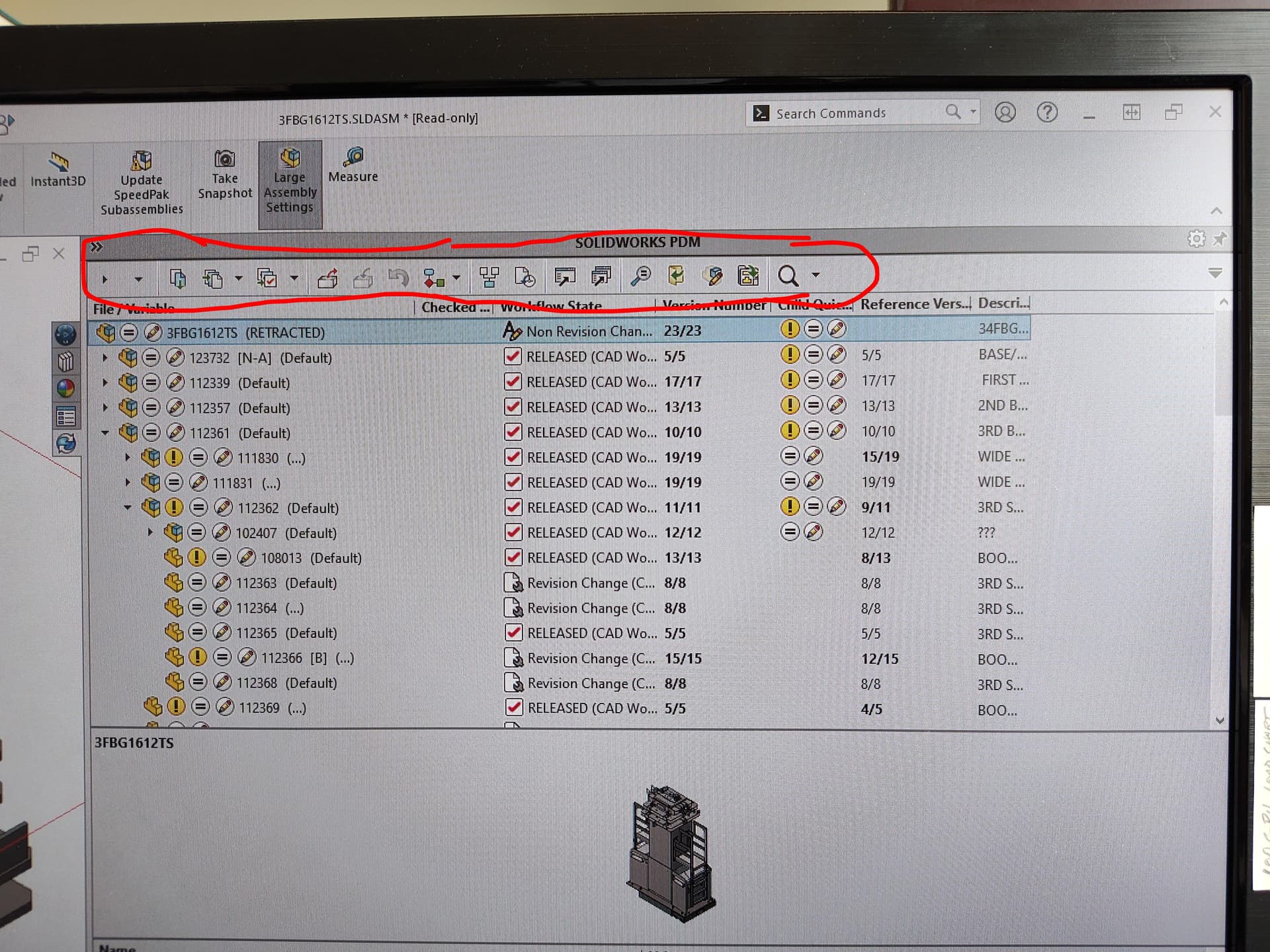
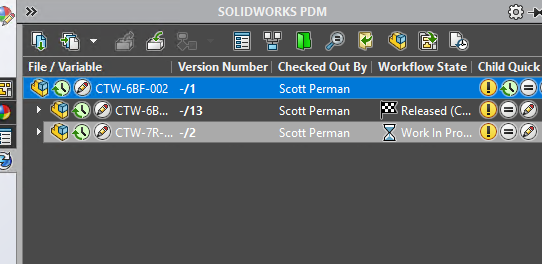
I would like to reorganize the buttons at the top of the PDM Task Pane since they were re-arranged in the update from SW22 to 25; see attached pic for context.
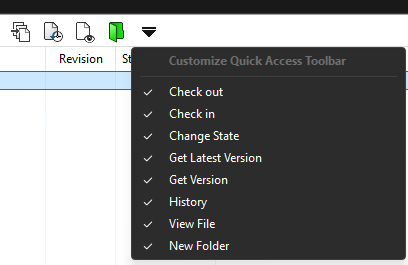
I can’t seem to find the right search terms to get an answer through a web search and I’m not seeing anything in the documentation… I have found how to enable and disable specific buttons here, but I would like change the order in which they appear. For example, I’d like Get Latest Version to be the leftmost button and I would like Open Drawing to be to the left of File History.
Is there any way to reorganize the buttons at the top of the PDM Task Pane?
P.S. How about the file properties below the preview?
I’m not aware of a way to reorder the icons. Workaround, bigger or more displays.
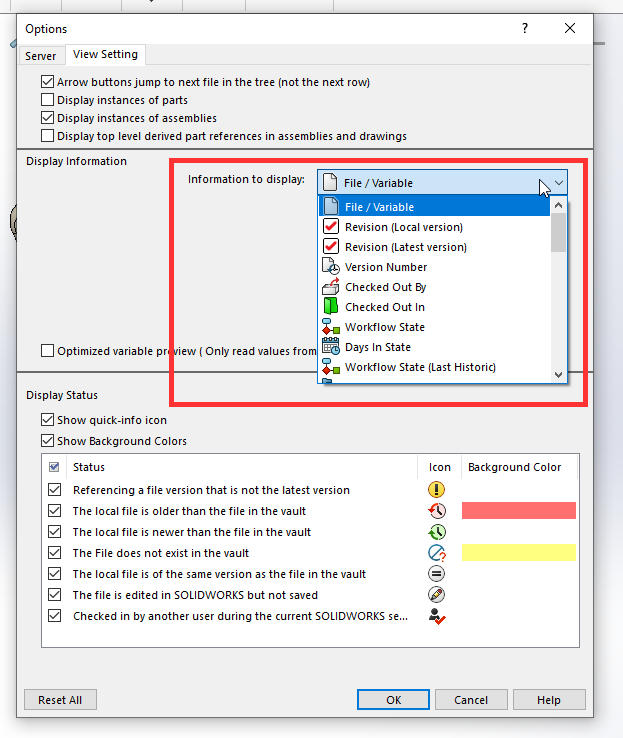
As for showing properties/variables below the preview. Tools-> Solidworks PDM → Options…, “View Setting” tab, select a variable from the “Information to display” dropdown, check the “Display in preview” checkbox.
That’s interesting. I am not an admin, but one sits right behind me (and has done for the last five years)… Maybe I’ll have to ask Dave when he gets in.
This is the Task Pane within SolidWx itself; I keep mine docked on the right side (I believe that is default location). It also contains the design library and appearances. The PDM task pane shows the assembly tree, a preview of the selected file, and some file properties. There are a series of buttons along the top for check in/check out, transition, get latest version, etc.
Is that what you were thinking of?
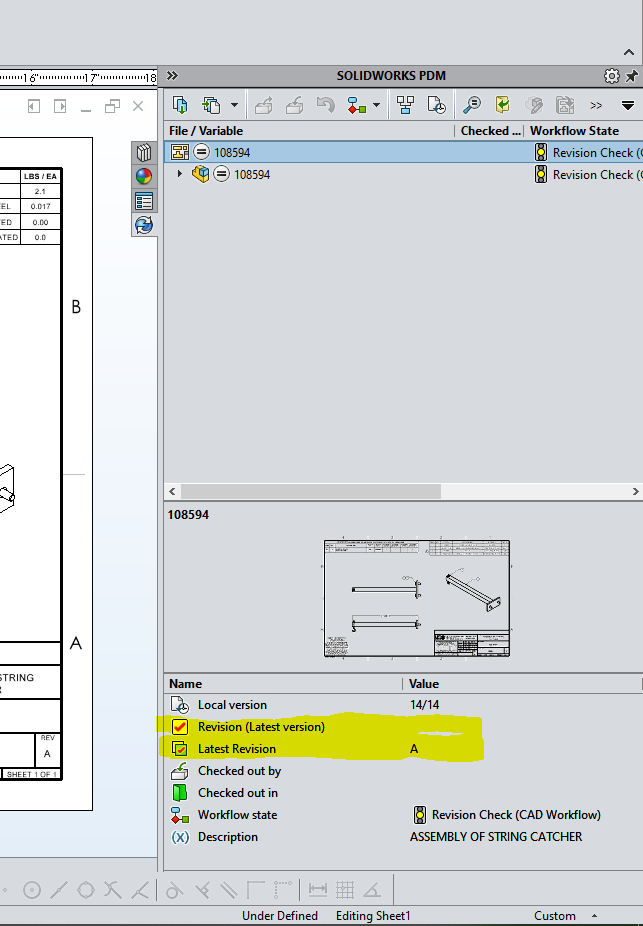
This absolutely did the trick, but … Some properties keep coming back. It seems to consistently be Revision (Latest version) and Latest Revision, neither of which I need because I already have to check file history for other reasons when reviewing.
Screen shot with the bits you’re referring to highlighted please? Revision, Version, Latest Revision, and Latest Version are mixed and used interchangeably in too many places for me to comprehend. I’m not picking on you; various variable names I’ve seen along with “Version” being called “Revision” in the SQL tables…
Revision is a label applied to a certain version to mark that point in the file history (i.e. the version that have the file revision changed from A to B), the latest revision is not a label, but a file variable that should be synchronized with the revision label and it is used for a different purpose, like showing the latest revision the file is entered on the drawing block or the datacard.
version is simply a file copy, generated on the server side, when you check in a file in the pdm vault.
Yes, very good, but why do they check themselves to reappear under the preview portion of the PDM Task Pane when I have unchecked them as bnemec so helpfully described?
And more importantly, how do I stop them from re-checking themselves on every time I start SolidWx?
That is the question I mean to be asking right now.
Please, screenshot also the PDM options you should have unchecked under tools menu → SOLIDWORKS PDM→options, be careful to scroll all the available settings.
I had disabled both to show our variables instead of the defaults, and customized the file names to show their current revision between brackets too, so it is indeed possible.
Since the settings are saved into the registry, try also to open SW as administrator, set the PDM options, close SW and open it again as a normal user.
You have to scroll “information to display” and check one by one the settings below if activated or disabled. easy to miss one.
Well, I can screenshot the box unchecked and then screenshot it checked, but I don’t imagine that will help anyone. I can assure you that I am in the same window you show and that I have unchecked both Revision (Local Version) and Latest Revision. When I do so, they go away as expected. I have also unchecked other options like Days In State and Workflow State (Last Historic). But each time I start SolidWorks, Revision (Local Version) and Latest Revision are back in the display and are checked again when I go look in that window. The other options that I disabled have remained off.
Next time I have to restart SolidWorks, I’ll try the Admin route; I hadn’t considered that eventuality.
Keep in mind you have also to properly close SW to save the options.
SW saves in the registry when closing the application, so if it crashes before you close it, nothing gets saved.
the admin trick is to compensate for a user profile lack of writing permissions in the registry.
I deploy SW with my scripts, I do not even touch that option dialog anymore as I just overwrite the registry for the current user instead. Unless there is a bug in the UI (which SW is not new at) it is likely a permission issue.
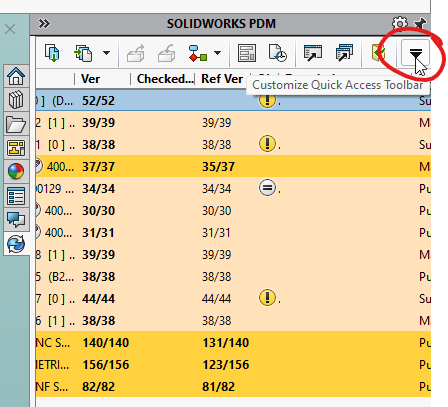
We just upgraded from 2017 to 2025, and users are complaining about the quantity of buttons on the PDM task pane. There are a bunch we do not need/use. Is there are way to remove them? Either it is not possible or my Google-Fu is failing me.
I had to use Google-Fu on PDM Task Pane. I’m thinking, “what task pane are users using? Tasks are set up in the Admin tool…” Right, the PDM Add-in in the Solidworks Task (not a PDM Task) Pane.
I’m guessing they don’t like that not all of the icons fit in the menu?
Our solution was get bigger displays. We need so many of the columns in the PDM Add-in SW Task Pane that it’s wider than the icon bar. I just measured mine with tape measure, it’s 7.5” wide. Icons take up roughly 4.75”.
Muscle memory is quite developed after using SW2017 exclusively for 8 years. SW added a lot of buttons to that toolbar since then and that moved our commonly used commands out of position and its driving people nuts. I knew there was a place to change it, I just wasn’t seeing it.
2017 to 2025? That must have been quite a jump!
I know we had a fair few lost reference planes going from 2019 to 2022. The most egregious I recall offhand was a wheel that was being machined inside and out in which the revolved cut swapped from the right plane to the front plane. It was quite a sight to see.
Glad you found how to remove buttons… I didn’t want to give in but at this point, I find myself having acquiesced to the order of the buttons.