I would like to put the PDM version of a part/assembly into a drawing note.
Is there a preexisting variable or do I need to create a custom variable for this?
You would need to create a variable to hold the value on the data card. Then map the variable to a SolidWorks custom property. The tricky part is when to update the version number on the data card. The system version number is increased on check-in, but won’t update the version variable on the data card. You would have to push the system version during a transition using an “action”. Which means your datacard version value doesn’t match until you update on a transition.
So I have to ask, what problem are you trying to solve?
I’m trying to introduce a “developmental” revision.
Our development cycle is CRAZY fast and I would like a “developmental” revision on a drawing marked by a check in. Hoping this will insure that, when looking at the drawing, it reflects the latest checked in part.
Currently our revision system not developed to the point that we can implement a workflow. I thought this would be the best option. I currently have a time stamp in our title block but would like something linked to the part.
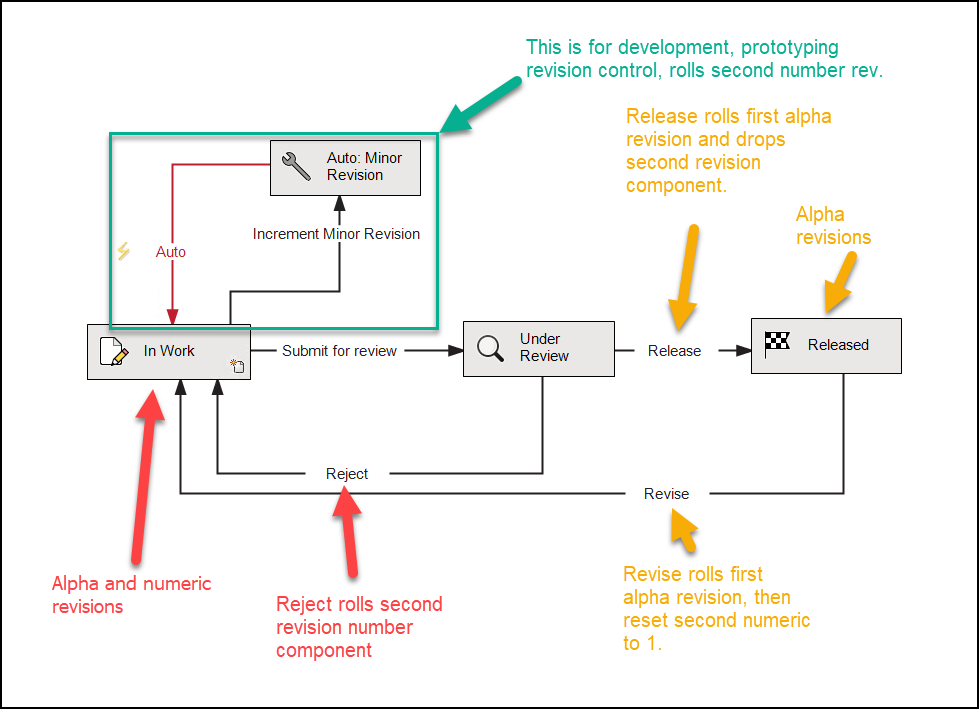
We have something like that but it involved a workflow. You can define different revision schemas then toggle those in your workflow.
Release: A, B, C, D,
Under revision: A.01, A.02, A.03 (Number part drops off at release, goes to next letter)
Concept: 1,2,3,4 (Nothing to do with the built in version)
I even one that at 3 tiers for different phases of a project for document:
Release tier number . Approval tier number . Inwork tier number
01.03.10
I forget why they want it and it was never implemented.
I would LOVE a work flow!!!
However I came into the company after someone created our workflows.
A young company that crated a THIGHT workflow that would work great for an established company.
Linking the drawing note to a part version, thought not a great solution, would be a step up from a manually entered revision!
Thank you for your help.
IIRC there’s an ER out there in the abyss for the SW PDM Add-in to offer the version, state and some other bit of metadata that already exists and keeping it up to date as a variable tedious and frankly, just silly as it’s already in SQL and shown in the PDM Add-in.
Our use case was to embed that data in the dxf or pdf as a bit of check that the users weren’t giving into pressure and going outside the proper procedures.
If you’re looking for development “rev” tracking, I’d suggest doing the dual rev symbol as Mr. Capriotti outlined, that’s a solid and supported solution.
Are you saying you don’t have a workflow or don’t feel you can modify it?
A neat way to do this is with a macro feature embedded in your drawing template. Every time you rebuild a drawing made using the template, the drawing can query the vault for the current version of a referenced document and update a drawing custom property.
I’ll upload a sample tomorrow.
OK, below is the macro to create a macro feature. There are 4 constants you will want to change to match your needs:
- PROP_NAME – the name of custom property that will be added to the drawing/template
- PROP_EMPTY_VALUE – the property value when there is no PDM version or no drawing views
- VAULT_NAME – the name of the PDM vault
- MACRO_FEAT_NAME – the feature name that will appear in the feature tree
How To Use It
You can open either your drawing template or individual drawings and and then run the macro. It will check to see if the macro feature has already been added to the file and exit if it has. Otherwise it will add the macro feature. The macro code gets embedded in the file, so if you run the macro in your drawing template and save it, any future drawings made from the template will have the macro feature in them. Other users do not need to have the macro code, unless they want to add the macro feature to individual existing drawings.
What it does
On every rebuild of the drawing, the file version (of the model in the first drawing view on the first sheet) will be retrieved from PDM and this value will be stored in custom property PROP_NAME which you can link to a note.
Limitations
It’s a simple macro feature intended to show what’s possible. As such, if you have multiple models in a single drawing, it’s not going to work correctly.
Dim swApp As SldWorks.SldWorks
Dim mDoc As ModelDoc2
Dim featMgr As FeatureManager
Dim macroFeat As Feature
Dim mExt As ModelDocExtension
Dim propMgr As CustomPropertyManager
Dim dDoc As DrawingDoc
Dim dwgSheetView As View
Dim firstModelView As View
Dim refModel As ModelDoc2
Dim vault As EdmVault5
Dim parentFolder As IEdmFolder5
Dim file As IEdmFile5

Const PROP_NAME = "CURRENT_VERSION"
Const PROP_EMPTY_VALUE = "-"
Const VAULT_NAME = "_DEVELOPMENT"
Const MACRO_FEAT_NAME = "VersionTracker"
Sub main()
    On Error GoTo CleanUp:
    Set swApp = Application.SldWorks
    Set mDoc = swApp.ActiveDoc

    If mDoc.GetType <> swDocumentTypes_e.swDocDRAWING Then
        Exit Sub
    End If

    Set featMgr = mDoc.FeatureManager

    If macroFeatureExists() Then
        Exit Sub
    End If

    Dim macroFile As String
    Dim methods(8) As String
    Dim pathname As String
    Dim options As Long
    macroFile = swApp.GetCurrentMacroPathName
    methods(0) = macroFile 'Filename
    methods(1) = "VersionTracker1" 'Module
    methods(2) = "swmRebuild" 'Regen function
    methods(3) = macroFile 'Filename
    methods(4) = "VersionTracker1" 'Module
    methods(5) = "swmEdit" 'Edit function
    methods(6) = macroFile 'Filename
    methods(7) = "VersionTracker1" 'Module
    methods(8) = "swmSecurity" 'Security function
    pathname = swApp.GetCurrentMacroPathFolder
    options = swMacroFeatureOptions_e.swMacroFeatureByDefault + swMacroFeatureEmbedMacroFile
    Set macroFeat = featMgr.InsertMacroFeature3(MACRO_FEAT_NAME, "", (methods), Empty, Empty, Empty, Nothing, Nothing, Nothing, Empty, options)
CleanUp:
    clearRefs
End Sub

Function macroFeatureExists() As Boolean
    On Error GoTo CleanUp
    Dim vFeatures As Variant
    vFeatures = featMgr.GetFeatures(False)
    Dim nextFeat As Feature
    For i = LBound(vFeatures) To UBound(vFeatures)
        Set nextFeat = vFeatures(i)
        If nextFeat.GetTypeName2 = "MacroFeature" Then
            Dim featData As MacroFeatureData
            Set featData = nextFeat.GetDefinition
            If featData.GetBaseName = MACRO_FEAT_NAME Then
                macroFeatureExists = True
                Exit Function
            End If
        End If
    Next i
    macroFeatureExists = False
    Exit Function
CleanUp:
    clearRefs
End Function
Function swmRebuild(app As Variant, part As Variant, feat As Variant) As Variant
    On Error GoTo CleanUp
    Set mDoc = part
    Set dDoc = mDoc
    Set mExt = mDoc.Extension
    Set propMgr = mExt.CustomPropertyManager("")
    Dim val As String
    Dim resolvedVal As String
    Dim wasResolved As Boolean
    'Add the property if it doesn't exist
    If propMgr.Get5(PROP_NAME, False, val, resolvedVal, wasResolved) = swCustomInfoGetResult_NotPresent Then
        propMgr.Add3 PROP_NAME, swCustomInfoType_e.swCustomInfoText, PROP_EMPTY_VALUE, swCustomPropertyAddOption_e.swCustomPropertyOnlyIfNew
    End If
    Set dwgSheetView = dDoc.GetFirstView
    Set firstModelView = dwgSheetView.GetNextView
    If firstModelView Is Nothing Then
        propMgr.Set2 PROP_NAME, PROP_EMPTY_VALUE
        Rebuild = True
        clearRefs
        Exit Function
    End If
    Set refModel = firstModelView.ReferencedDocument
    If refModel Is Nothing Then
        Rebuild = True
        clearRefs
        Exit Function
    End If
    Set vault = New EdmVault5
    vault.LoginAuto VAULT_NAME, 0
    Set file = vault.GetFileFromPath(refModel.GetPathName(), parentFolder)
    If file Is Nothing Then 'Not in vault
        Rebuild = True
        clearRefs
        Exit Function
    End If
    propMgr.Get5 PROP_NAME, False, val, resolvedVal, wasResolved
    If resolvedVal <> Str$(file.CurrentVersion) Then
        propMgr.Set2 PROP_NAME, file.CurrentVersion
    End If
    Rebuild = True
    clearRefs
    Exit Function

CleanUp:
    clearRefs
End Function

Function swmEdit(app As Variant, part As Variant, feat As Variant) As Variant
    Edit = False
End Function

Function swmSecurity(app As Variant, part As Variant, feat As Variant) As Variant
   Security = swMacroFeatureSecurityOptions_e.swMacroFeatureSecurityByDefault
End Function

Sub clearRefs()
    If Not mDoc Is Nothing Then Set mDoc = Nothing
    If Not featMgr Is Nothing Then Set featMgr = Nothing
    If Not macroFeat Is Nothing Then Set macroFeat = Nothing
    If Not mExt Is Nothing Then Set mExt = Nothing
    If Not propMgr Is Nothing Then Set propMgr = Nothing
    If Not dDoc Is Nothing Then Set dDoc = Nothing
    If Not dwgSheetView Is Nothing Then Set dwgSheetView = Nothing
    If Not firstModelView Is Nothing Then Set firstModelView = Nothing
    If Not refModel Is Nothing Then Set refModel = Nothing
    If Not vault Is Nothing Then Set vault = Nothing
    If Not parentFolder Is Nothing Then Set parentFolder = Nothing
    If Not file Is Nothing Then Set file = Nothing
End Sub