Issue VBA IDE zoomed in

Hi all,

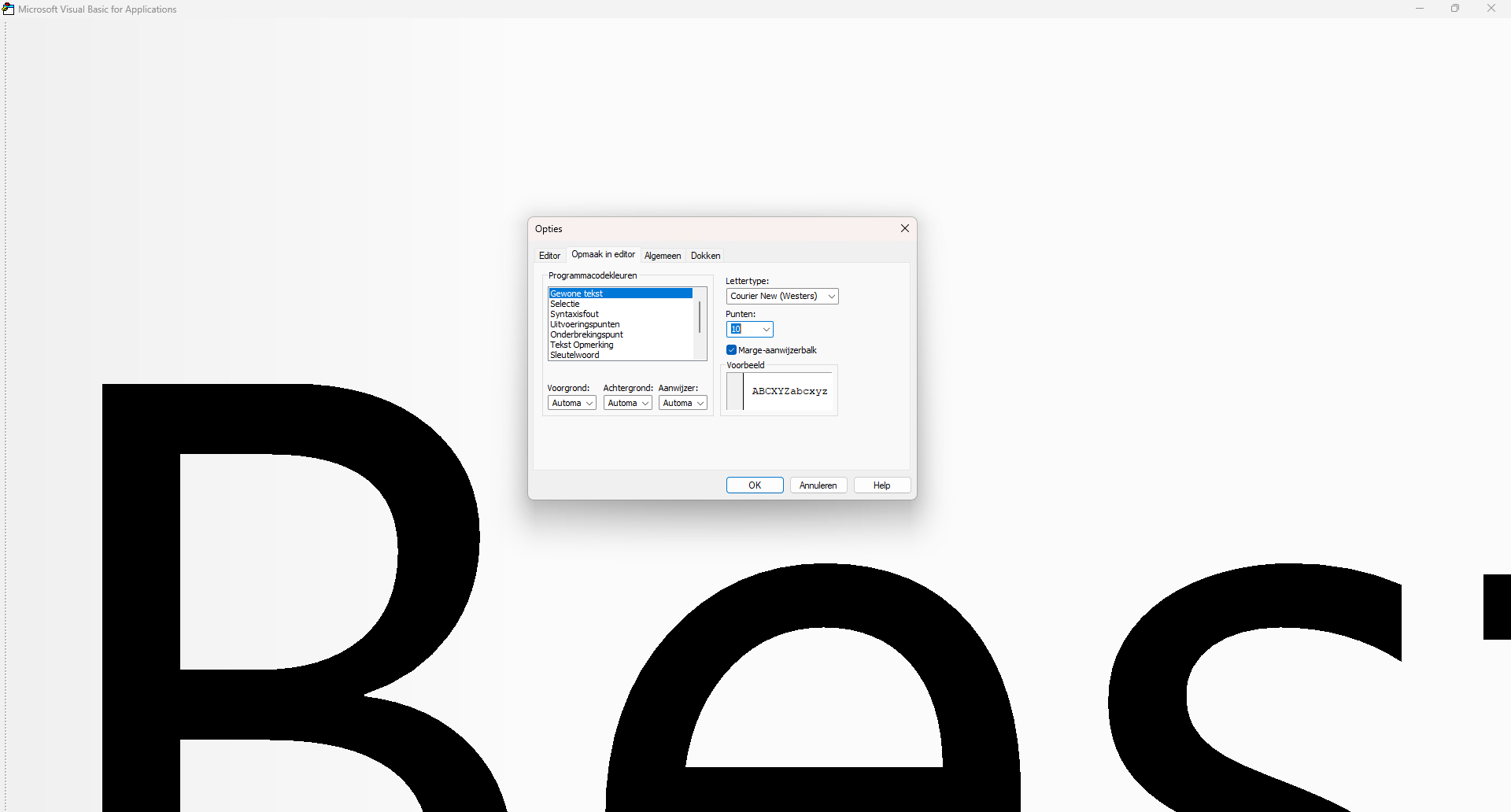
I’m encountering a strange issue that I haven’t been able to resolve. When I open the VBA IDE through SOLIDWORKS, the interface appears completely zoomed in the top-left corner. However, when I open the VBA from Excel, it displays correctly.

Please see the image below for reference, left: opened from SOLIDWORKS, right: from Excel.

I’ve found multiple posts addressing the same issue, but none of them provide a solution.
VBA editor in excel is inaccessible - Stack Overflow
Excel VBA manager is zoomed in, see picture! how do i fix it? - Stack Overflow
Excel VBA editor does not function, it just says “FILE” - Stack Overflow

Has anyone experienced this or know of a solution?

Things I tried, but didn’t help

  1. SOLIDWORKS repair installtion
  2. Manual reinstall of VBA 7.1, vba71.msi and vba71_1033.msi (…\SOLIDWORKS Downloads\SOLIDWORKS 2025 SP02\PreReqs\VBA)
  3. Tried removing (by renaming to _OLD) the VBA registry key at:
    HKEY_CURRENT_USER\Software\Microsoft\VBA
  4. Unplug docking station
  5. RUN SOLIDWORKS with High DPI settings
  6. Changing Display resolution and scaling
  7. New (windows) user account

System Specs
Dell Precision 7680 - Windows 11 Business (26100.4652)
Intel i7-13850HX - 32GB RAM
Nvidia RTX 2000 Ada 8GB (v572.76)
Dual monitor setup via Dell WD19DCS docking station

SOLIDWORKS 2025 SP3

1 Like

I do not know if it could be related or not, but when I tried to change the scroll bar sizes in win11 I had some application showing very big UI elements, so it sounds like some botched registry entry or explorer UI related.

Is it occasional?

1 Like

Hi Stefan,

Have you been able to solve this?

As i can see from your screenshot the menus and tree are OK.

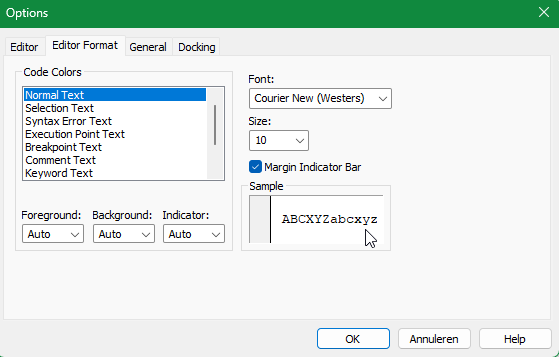
i’m curious to see what options you have in VBA editor:


Maybe tinkering here can help?

Eddy

1 Like

No, it’s not occasional. Haven’t seen it working correcty on this new system.

Nope :confused:

It was a struggle to get into the Options menu, but pressing the left arrow five times, then the down arrow three times, and hitting Enter did the trick. The settings appear to be the same, and changing them doesn’t seem to have any effect.

Will try creating a new User Account.

2 Likes

Same issue with new user account :confused:

Have you tried switching to the on board GPU instead of the Nvidia RTX 2000 just to see if it makes a difference?

1 Like

You may have already tried this, but I’ll write it anyway.

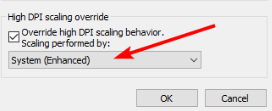
  1. Click on “Change high DPI settings”
  2. Check the box for “Override high scaling behavior”
  3. For “Scaling performed by” choose “System (Enhanced)”
  4. Re-launch Overwolf to make sure that the changes are applied
2 Likes

Got it working again!

Thanks for all the input, everyone.

I used a default script to uninstall the VBA 7.1 packages. However, I discovered that one package wasn’t removed after listing installed products via PowerShell using the following command:

Get-WmiObject Win32_Product | Sort-Object -Property Name | Format-Table IdentifyingNumber, Name, LocalPackage -AutoSize

So, I manually removed this stubborn one via Command Prompt:

MsiExec.exe /x {D5CB16D9-B08E-4B1B-AD7C-EA3F330724AA}

After that, I reinstalled the vba71.msi and vba71_1033.msi packages, which finally did the trick!

Path used:
C:\...\SOLIDWORKS Downloads\SOLIDWORKS 20XX SPXX\PreReqs\VBA

I believe the Dutch variant was originally installed through another software package (AlphaCAM).

3 Likes