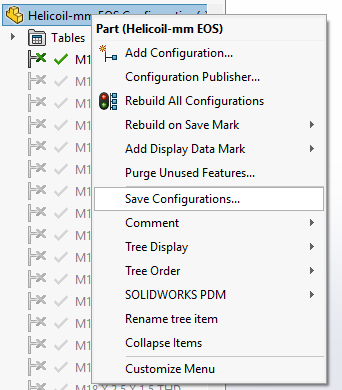
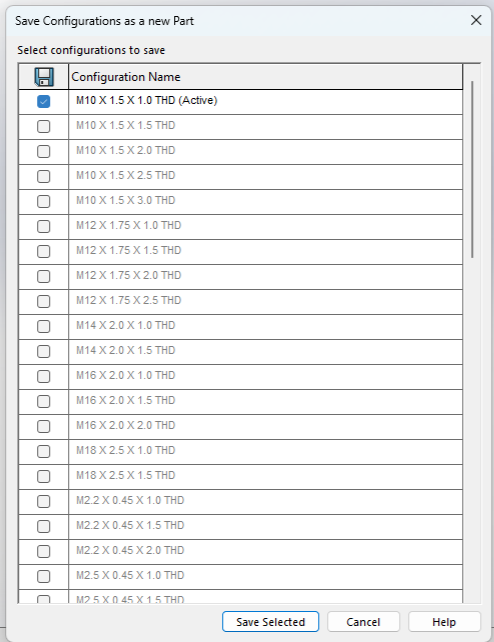
Have a part with 100 configurations and want to save each as a new separate file, I see the save configuration selection and saw a thing on the internet saying split configurations either way when I try the save configuration I get a new file with all the configurations I selected in that file (if I select 1 or 10 that is what is in the new file)
That is interesting!
The old way was to save out the file and delete all the other configs and that was very time consuming thing to do. I really like my configurations for being able to switch out parts easy.
Yeah I remember the old way and this is not much better, as you would think there would be a way to separate out all of them at once and just use the configuration name, see 2026 is suppose to have this feature although 2020 says the same thing according to google.
I would rather not have to save 100 files and or rename 100 files
There is always a macro out there to do something. When I took a job doing ACAD they were easy to find but there was a lot more manual work to be done in that program. It takes me longer to find the macro than to do the task.
We had this problem a couple of years ago after trying configurations for hardware models. Turned out configurations for hardware did not work in our use case. With hundreds of hardware models in a half dozen files with many thousand where used already, it was a bit of a task to break them out. It wasn’t just saving the configs out, there was a bunch of other file management things to handle. After doing a few manually I had a repeatable process and wrote a program that used SW and PDM APIs to automate the process. It ran for a few days.
It is actually down as a top enhancement in 2026, see below extract -
Splitting Out Configurations Into Individual Files on page 46
To split out configurations into individual files: 1. Open a part or assembly that has multiple configurations. 2. In the ConfigurationManager , right-click the file name at the top of the tree or any configuration in the tree and click Split Configurations. The Split Configurations as New Files dialog box opens. 3. You can specify these options: • Update where used. Updates all the references of the original part in the assemblies or drawings to newly created single physical product files in open and out-of-memory files. If you clear this option, the Where used table is unavailable. • Where used. Displays all open in-memory assemblies or drawings of the part or assembly being configured. If you select a check box, the software updates the references of the selected assemblies and drawings with the new split-out parts. • File Locations. Opens the File Locations dialog box. You can update the Where used references of open and out-of-memory assembly and drawing files when the configurations are split. • Updatefor3DEXPERIENCECompatibility. Creates single physical product files. 4. Click Save. All the configurations are split out into separate files that are in the same location as the original file. The file names are ..SLDPRT or SLDASM. For example, for a part named BasePart.SLDPRT that has a split configuration named LongHandle, the split configuration name is BasePart.LongHandle.SLDPRT.