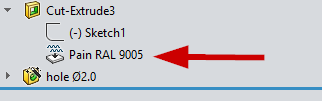
I’d like to share an API feature in SOLIDWORKS that is very powerful but rarely discussed: Attributes.
Attributes allow you to attach structured, typed data directly to any model object:
- Features (including Feature Tree folders)
- Faces, edges, bodies
- Components in assemblies
- Geometry in parts
They are stored inside the SOLIDWORKS file, survive rebuilds, save/reopen, and are fully accessible through the API.
Concept: AttributeDef → Attribute Instances
(very similar to classes and objects in programming)
1. Define an Attribute schema (AttributeDef)
An AttributeDef describes the structure of your data:
Set attDef = swApp.DefineAttribute("CANDLE_PAINT")

attDef.AddParameter "paint_name", swParamTypeString, 0, 0
attDef.AddParameter "qty",        swParamTypeDouble, 0, 0
attDef.AddParameter "unit",       swParamTypeString, 0, 0
attDef.AddParameter "json",       swParamTypeString, 0, 0

attDef.Register
After Register() the schema is frozen and can be reused many times.
2. Create multiple Attribute instances (like objects)
You can create many instances of the same AttributeDef and attach them to different objects:
Set att = attDef.CreateInstance5(swModel, targetFeature, _
    "Powder paint RAL 9005", 0, swAllConfiguration)
Each instance:
- Has its own values
- Is attached to a specific feature or geometry
- Can be visible or hidden in the FeatureManager tree
Values are stored per instance:
att.GetParameter("paint_name").SetStringValue2 "Powder paint RAL 9005 polyester matte", swAllConfiguration, ""
att.GetParameter("qty").SetDoubleValue2 0.35, swAllConfiguration, ""
att.GetParameter("unit").SetStringValue2 "kg", swAllConfiguration, ""
Practical Manufacturing Use Case: Technological Operations Without PDM
I use Attributes to model manufacturing operations directly in the FeatureManager tree without PDM or external systems: at the end of an assembly tree I create an empty folder (e.g. Paint) and attach one or more Attribute instances to this folder, where each attribute represents a coating layer such as primer or paint and stores structured data (paint name, quantity, units, optional JSON). This makes the folder a visible marker, while the real data remains protected inside attributes and editable only via a macro or add-in. Combined with standard features, this approach naturally reflects the real process order—for example: drill holes (assembly cuts) → paint (folder with attributes) → tap threads—providing a clear, readable technological sequence directly in SOLIDWORKS using only the API.
I understand that paint can be written in Custom Properties. But when an object is in the tree, it’s visually accessible, you can drag it anywhere, and the order is clear, or is it just a waste of time?