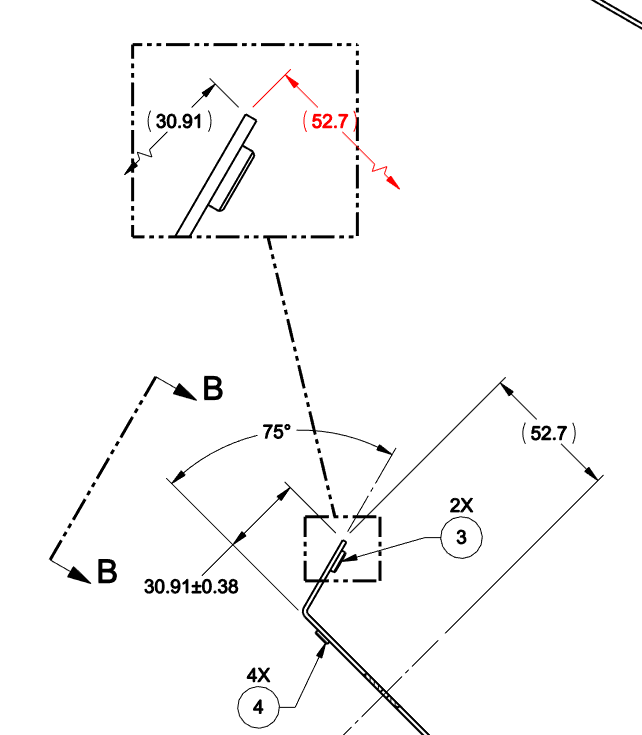
I have a drawing with a detail view and a reference dimension to a centerline in the main view (see image). I can drag the dim into the detail view and it shows correctly, with a foreshortened dimension. However, if I reopen the drawing, the dimension is red (my color for dirty elements). Other dims stay black, but I guess the problem here is that the dimension goes to a centerline. Of course, the drawing prints as black and there’s no issue leaving it red in Solidworks except the next person to do a revision is going to see the red dimension and try to fix it. Is there a way to make it look black in Solidworks? I might just change the default error color to black, just for this one drawing, but that seems dangerous.
I added a dimension to a different feature, copied it into the detail view, hid it in the main view, and overrode the value. That stays clean, at least.
I didn’t know that you can switch which arrow gets foreshortened by sliding the dimension location. In my case, it showed up on the wrong side, with the foreshortened arrow pointing at the one witness line. I found I had to turn off dimension centering and push the dimension toward the witness line, and that flipped it.
Solidworks help for 2025 says you should pick the side you right-click on when you select a foreshortened display, but I find it doesn’t matter which side you pick, it comes up the same either way.