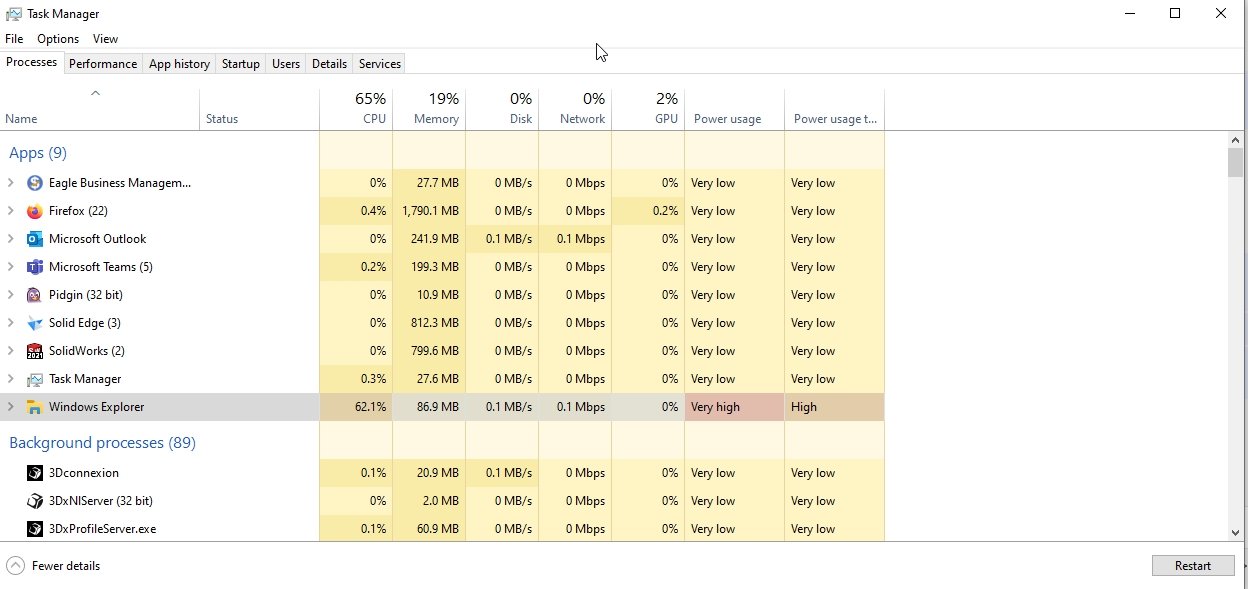
What causes File Explorer to sometimes utilize so much CPU? It seems to happen only after downloading large files; >10 GB of installation media is what did it today.
Even if there is nothing currently downloading it keeps using more and more CPU across all 10 cores.
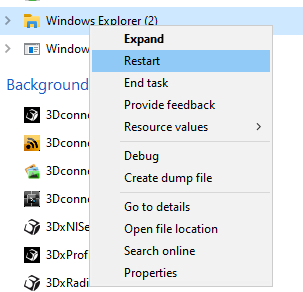
I have this problem when I have the “SW Last Saved With” column turned on in file explorer and I’m moving files into the directory with those turned on. The only way to make it lower the CPU usage after is to kill explorer.exe and restart it in Task Manager.
I’ve had this same thing happen. I’ve also had weird things happen when I kill File Explorer via task manager, such as my desktop goes blank, and my task bar disappears. The only way I was able to get it back was to reboot.
That’s not weird, that’s normal. You desktop and task bar are part the explorer.exe process. Instead of killing it, just restart the process in Task Manager.
Or, if you are using Windows 7 and don’t have ‘Restart’ as an option, you can ‘End Task’ from the Task Manager and then while still in Task Manager, select File…Run New Task and type explorer.exe in the box to get your desktop and task bar back.
I’ll give this a try. I’ve had issues with file explorer hanging-up or crashing mysteriously while SW is open. I’m on SW2020 SP5.0 + Aton 6Client and SolidPDM.
Personally I haven’t used Explorer in years. After years of waiting in vain for a tabbed interface, I started using Xyplorer and I can’t go back. (That said, Explorer.exe is still in the background making minor mischief)
If you need to force quit Explorer or it crashes entirely with no task bar, there are two other ways (other than using the “Restart” option in Task Manager) to get it back:
In Task Manager, click File >> Run. In the popup window, type in “explorer.exe” and click OK; new instance of Explorer will launch
Use keyboard shortcut to open Run dialog box, WIN + R, then type in “explorer.exe” and click OK
Both of those will prevent you from having to reboot every time if you’re not able to use the Restart Process in the Task Manager.