Hi folks,
I was working through a larger assembly today, checking all the drawings that have been updated since the last build. And it occurred to me that I haven’t found a very efficient way to get a list of drawings that need to be checked unless the person who kicked them up has tagged me or handed me a list of numbers.
I went to PDM, looked up the top level assembly, and went to Contains tab, exported that to CSV, opened in Excel, and filtered by the State column. The problem I have is that it is referencing the version of the file used by the latest version of the top level. The specific thing I have is a tang, referencing version 8/15, claims to be in revision change, but is actually released.
What can I do to be sure that my list of files to check contains the state of the latest version?
It seems like my only recourse is to flip through the file tree in my PDM pane in SolidWorks and check every drawing I find one at a time.
Has anyone else found a better way?
From what I recall, the “State” column always shows the current state, regardless of what version its showing.
Sounds like you need an ECO tracking mechanism. At the least assign a unique ECO number to each change and add it as a variable to all of your files in PDM. Then you could add the ECO number column to the contains list and find all files being changed together.
Turns out you are right; I just happened to find the one file that would trip me up.
This part file had been replaced by an assembly file to capture the material used to make it in house. Someone failed to kick the part file into our obsolete state, so the part in rev change was still in the top level, but the assembly was released.
I suspect that ECO variable would be a good way to track it, but it sounds like more work than it’s worth for my company—There are now four of us who do revisions and we all sit within a 10 foot radius. We don’t know a lot of times what drawings will need to be fixed when we resurrect an old machine, so we have to add them to the list as we go along. Seems like it would just be an extra step to add them to another list after compiling the first list… But I would believe it could have use in the future when trying to decode history changes.
Not much work as you don’t really need to build a full blown ECO system. Maybe use the PDM template function to create an Excel document and auto number it with a serial number. List your part numbers you want to change in it, add the serial number to your drawing/model datacards. Maybe have two states for the lite ECO (In progress, Released).
Another thought is when you transition your files to be worked on, have the system put your name on it in a variable. Then you could show that column in the contains list to help filter against.
Thanks for the thoughts; I get it.
Come to think of it, I could have advanced searched for files transitioned by the person who did the revision and in our check states.
The are a few other things that make this super powered and totally worth it.
Here’s my brilliant innovation:
- “Tag” or “EC” variable added to all data cards, and some Search Cards. It’s version free (Latest Version type), so easy to change as you go.
- Changers add a simple EC type number there (variety of methods to create it) for all related files they are working on.
- Tag field is cleared on approval, when PDM stamps a revision (but old tags are stored in history and searchable with checkbox All Versions, which I turn off by default on search cards).
Then you can just search the Tag and it pulls up all the files (we put it on models and drawings) in a work package. They can all be approved or checked-out in one place, from the Search window. Share the tag ID with your reviewer, and they can easily pull up the same files, it’s essential.
We allow tagging in the Approved state also (allow “Edit version free variable data”), and then you also use it to move a bunch of files from approved to an edit state.
Once users get used to it they love it. It is also a big improvement to the dreaded leaving a-bunch-of-files-checked-out-so-I-can-find-them trick. It’s easier to use and more transparent than the rarely utilized PDM Labels.
Bonus: make an easy Dispatch script to Tag multiple files in one action.
Also don’t forget the PDM Bill Of Materials tab has controls that Contains doesn’t. You can customize the columns, add State or whatever. And export for Excel.
I haven’t done this since we don’t have/need a full blown ECO process, but I’ve thought about it for other processes we have here.
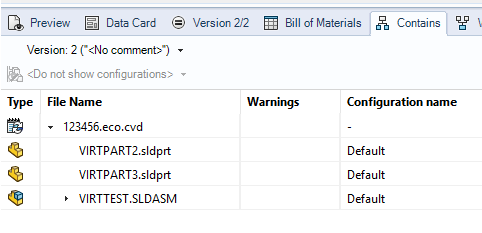
Why not simply create your ECO document (real or virtual) via template (or PDM add-in) and then when it is checked out you can Copy…Paste As Reference any files that are part of it? Advantages:
-
the ECO document can have a data card with whatever relevant info is needed
-
the ECO Contains tab lists all the files attached to it
-
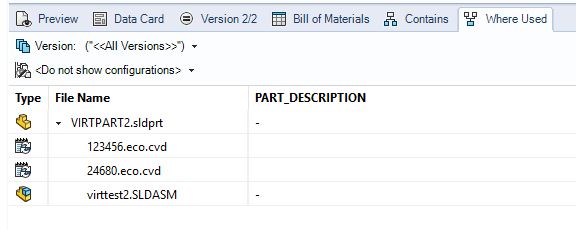
the where used tab of a file shows ALL the ECOs where it has ever been added
-
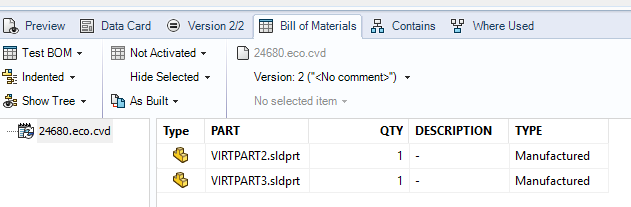
the ECO will have its ‘contents’ listed on the BOM tab
-
if more files need changes anyone can check out the ECO document and Copy…Paste as Reference the new files.
-
I believe that if the ECO file workflow shares transition names with the workflow of the attached documents, you can ‘Change State’ on the ECO and transition the attached files at the same time.
To me this is a low effort (not much training or setup required), high value solution.
I think I’ve heard of systems like that Jim. Might be ways to make it work, but I’m not sure about some of the details. But what happens when you revise something 4 times? You’ll always have those references popping up in Where Used or Contains. Sounds messy and confusing.
It’s much easier to add a Version Free Variable tag to a card, compared to paste as a reference. Is it even possible to paste multiple files at once? With Dispatch I can EC tag dozens in one action.
I do use a PDM Excel template to create the EC number, as jcapriotti mentioned. It gets the EC number in both the tag and the filename. But you could manage without this traveler document.
In addition to the tag, another method is using the workflow to review each file.
In Work > In Check > Approved > Release
Then apply the tag on the transition for additional search filtering.
There would be no change to the Contains tab for any models/drawings in this scenario. The Where Used would show that there were 4 ECOs associated with the file, which is good historical information to have in my opinion. And they are right there available to open to get more details.
But if you clear the tag after the change is done, you’ve lost some important history. Or at least made it much harder to track down.
Absolutely. It’s like a Copy Paste in Explorer. Select files, right click, Copy, right click checked out ECO file, Paste as reference. There is an enhancement request for drag/drop which would be nice.
One downside to this is that paste as reference is exclusive to Explorer. You can’t do it from the SOLIDWORKS PDM add-in.
As I said in my original post, I don’t use this at the moment, so there are probably cons I haven’t discovered. I have plans to use it not for ECOs but for making things easier for our MFG group. I want to right click an assembly and ‘Generate Fabrication Request’ which would create a fab request document, walk the assembly tree and grab the PDFs of drawings for all manufactured parts and ‘Paste as reference’ them to the request. The data card for the request document has all the pertinent info (job number, quantities, etc). We don’t have a full blown ERP system here so this would be a big time saver for Engineering and Manufacturing.