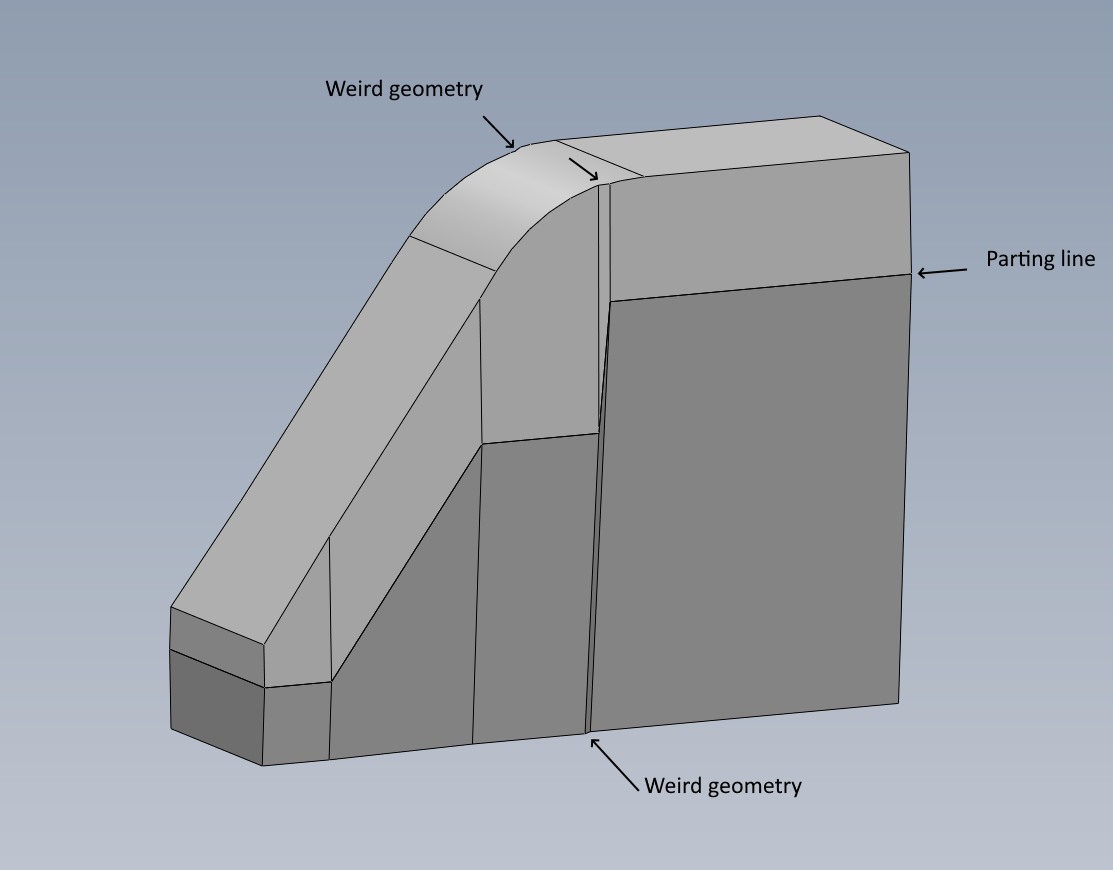
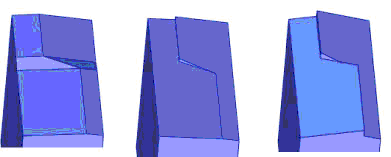
You can’t use step draft and avoid weird geometry at the same time. If you want to draft from the stepped parting line and not get the weird geometry, you have to use a loft feature and accept “variable draft”. Solidworks doesn’t have a setting called “hold line” except in fillets.
There is an option called “Step Draft”, which creates a mismatch at the PL. The example on the left is the one you want to avoid. To keep the top and bottom clean, you have to create this ledge at the PL, which SW calls “Step Draft”. It’s more difficult to set up, but the results are cleaner if you can deal with the mismatch. Also attached is the plastic features chapter from my last SW Bible book. The Step Draft is explained starting on page 1083. c38_KDproof-mjl.pdf (3.66 MB)
Instead of drafting after-the fact, build the draft into the part earlier. A draft is nothing more than a slanted sweep. Or maybe you can draft individual faces and build the transition manually.
All that matters is that the part has draft, NOT whether you used the “right” feature to make draft.
Maybe rethink your parting line. at least get rid of sharp corners.
Thanks everyone. I’ve realized the Draft feature is not the right tool here.
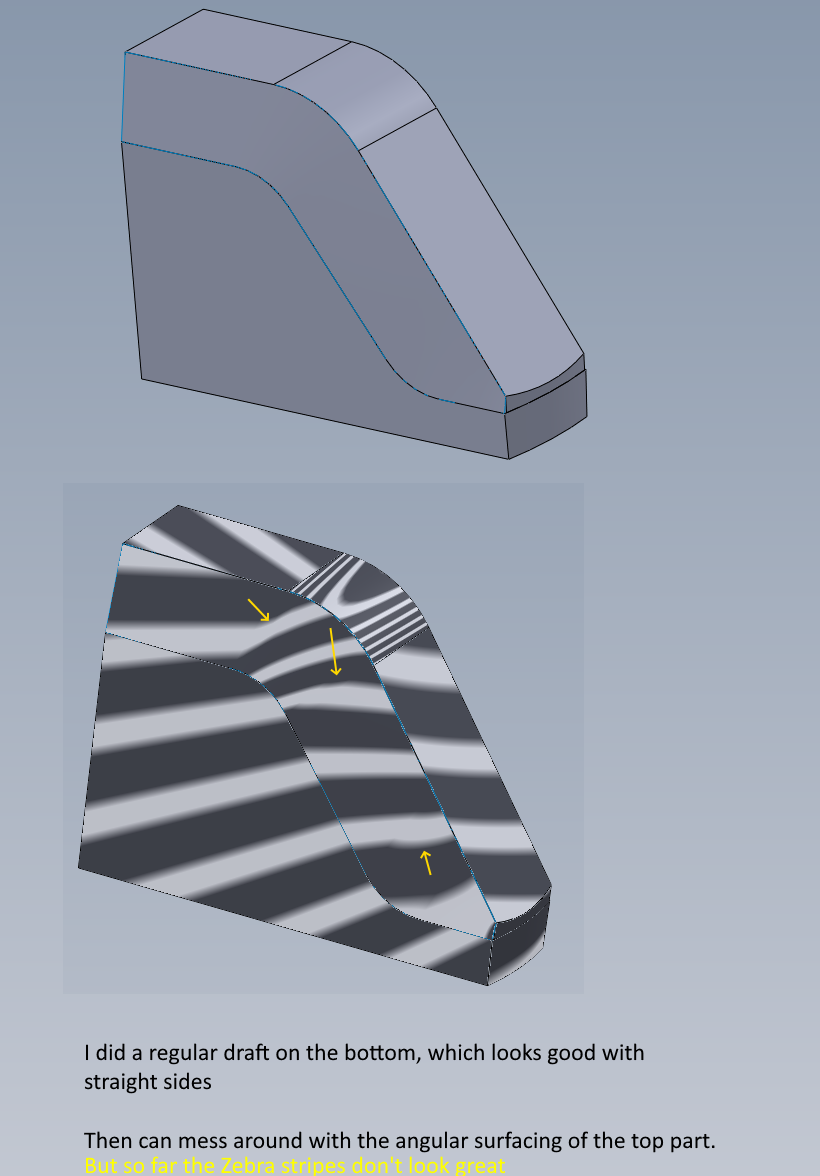
I’ve also simplified the parting line. There was just too much disparity there to get a good surface it seemed.
Using surfacing instead now.
I just did a normal draft on the bottom surface, and will loft from that parting line result up to the top surface.
Hi Matt (and any others). That mismatch is what my parts have now but I would never use that.
It seems I can only have nice straight side wall surfaces and a mismatched parting line OR have a matched parting line but the surfaces are all wrinkled up and not usable.