There was one report (BR10000382804) that opening an assembly in lightweight mode would cause this, but it was supposedly fixed in SW2024 SP5.
Another report (BR10000396878) of CAD Family appearing out of nowhere was listed as fixed in SW2025 SP3, but didn’t list a cause or method to reproduce.
And then there is another report (BR10000414533) of it happening and was supposedly fixed in SW2026 SP0.
And then we have a report (BR10000413423) which is marked as closed and says emphatically in all caps:
THIS PROBLEM WILL BE FIXED ON SOLIDWORKS 2026 SP1.
And its companion report (BR10000412884) with the same haughty claim that it will be fixed in 2026 SP1, but it also has a step by step way to reproduce, which does involve part templates:
1) Start SOLIDWORKS
2) Tools > Options > Default Template > be sure a default template is set for the Part > OK
3) Go to Windows Explorer > location of the default Part template > rename the Part template in order for SOLIDWORKS not to find it
4) Create a new Part > OK
5) SOLIDWORKS prompts: ”Default template not available” message > chose ‘Use a blank template’ option
6) Go to ConfigurationManager > Configurations change to Cad Family
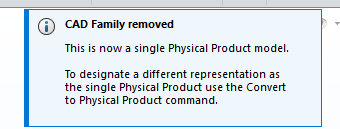
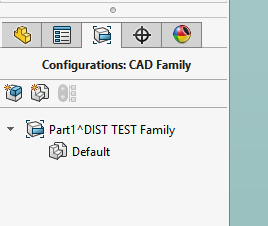
I tried this in SW2025 SP5 and it does in fact switch to CAD Family:
But this only happened when creating a new virtual part. The Default template not available message has to appear in order for the bad behavior to happen.
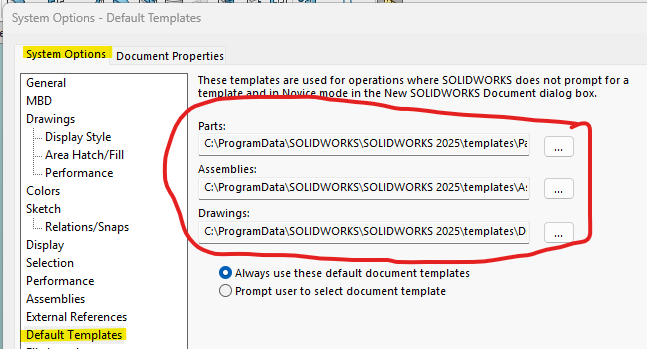
So, @toomdog, you should probably check that the default templates listed here:
point to actual files that exist, or switch the setting to Prompt user to select document template which will then use the folders listed in System Options...File Locations...Document Templates
Lastly (and I find this really funny), the opposite problem shows up (BR10000426749) where parts that should be CAD Family are incorrectly showing Configurations. Supposedly fixed in SW2026 SP3. However, the end of the report has conflicting information:
So it was not reproducible, but there’s a fix coming?