@AlexB That sounds very useful. I would love to have a copy.
I will talk to my EEs about getting them some different models for the capacitors and resistors. That will help for our internal things. The thing that started me asking the questions was a file we received from a vendor.
It is not uncommon for connectors that have sheet metal housings (HDMI, USB, RJ-45) to have errors. I have a few cleaned up (less detail, no errors) models. I have been replacing the imported ones with mine and then doing another export and import as part of my clean up.
I’ll have to get it cleaned up when I have time this weekend then.
PCB Simplification.swp (214 KB)
The macro is attached. It also has a block of code at the end of the ‘Run()’ function called ‘AddSimplifiedConfig’ where it creates a config where all the items with R or C designators are suppressed and anything with a MH designator is deleted, since that’s hardware.
If that is not desired, suppress the whole of statement that contains that call in the ‘Run()’ function.
Now, it’s designed to be run with either no document open, or right after you import the step or x_t file. If you open the step/x_t file prior to running this, you’re responsible for saving the assembly if it’s canceled before it is done.
If you run it and browse to the generic file for it to open, then the progress will be saved to a temp directory. Progress can be resumed later by browsing to the same generic file as you did the first time. It will automatically grab the temp assembly and keep going.
Since files are saved to a temp location, it will ask to clear the cache each time it is run. This should be cleared before each new board is processed. Don’t clear it if you’re resuming processing of a board you’ve previously canceled.
The macro will hide the UI while processing. It will re-show it when it’s done or canceled.
Extremely impressive, thanks! Will see if I can integrate that in to our workflows at all.
Only place it seems to trip up a little is that my “RV” components (variable resistors) also get suppressed in the simplified configuration despite being “big” parts - I assume it’s just because they start with “R” and that’s all the logic is based on?
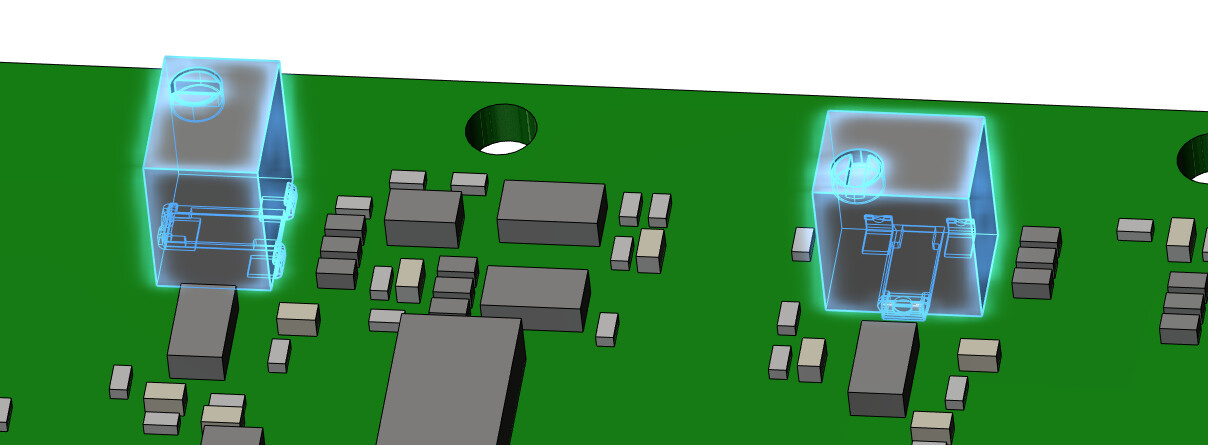
I also wonder if it’s possible to sort the feature tree alphanumerically as everything has a consistent prefix and they’re just solid bodies rather than interdependent features? All the macros I’m finding are for sorting assembly trees rather than part trees.
Yeah, you’re correct that it only looks that the name starts with “R”.
If a stricter comparison is needed then the ‘SelectFeatureWithNameStartingWith’ function could be modified to suit your needs.
Reordering the feature tree can be done with
Thank you for the macro. I seem to be doing something wrong, or our setup isn’t helping. We have all our “documents” and “desktop” as onedrive files. I did update the macro to use
desktop = Environ(“ONEDRIVECOMMERCIAL”) & “\Desktop”
So, right after I open the step file, while the new assembly is open, I should run the macro. I didn’t see where I put the output. It seemed like I ended up with the assembly with the the board part in it and the board part was empty.
I ran sub main.
I did notice this note in SolidWorks “none of the selected entities could be deleted” was showing until I touched SolidWorks.
Hmm, I haven’t had to account for onedrive before so I’m not sure what the equivalent path would be.
This can be run either 2 ways:
- No files open, then it will prompt you to open the step/x_t to process
- After you open the step/x_t. Save it and all of its parts to a location, then run the macro.
I found someone to help me look at the macro. We are using SolidWorks 2024, SP 5.0.
He disabled the suppression of features in SupressUpdates() and then we got a part output with features rather than a bunch of empty parts. We’re going to make a couple more updates, and I’ll try to share it back after that. It won’t get looked at until the end of the week though.
Normally, we import parts with 3D interconnect enabled, we turned that off also.